Ultimate Gaming Performance Guide for Windows 10 & 11 (2026)
Complete guide to gaming performance optimization in Windows 10 & 11, from thermal management to system tweaks.
Gaming on Windows should be smooth, but thermal issues and system bottlenecks can ruin your experience. Understanding how your system performs under gaming loads is key to optimization.
This guide covers everything you need to know about gaming performance - from thermal management to system optimization.
Thermal Management and Performance
What is Thermal Throttling?
When your CPU or GPU gets too hot, it automatically slows down to protect itself. This is thermal throttling, and it’s one of the biggest gaming performance killers.
Symptoms: FPS drops during intense gaming, performance degradation over time Causes: Poor cooling, dust, inadequate thermal paste, high ambient temperatures Solutions: Better cooling, regular maintenance, proper airflow
Understanding this helps maintain consistent performance: What is Thermal Throttling
CPU Temperature Management for Gaming
Gaming puts heavy load on your CPU, generating significant heat. Proper temperature management is crucial for consistent performance.
Safe gaming temperatures:
- Idle: 30-50°C
- Gaming: 60-85°C
- Danger: Above 90°C
- Thermal throttling: Usually starts 90-95°C
Monitoring and management: CPU Temperature Normal Range for Gaming
Hardware and Performance Issues
Why Old Computers Feel Faster
Sometimes older computers with “worse” specs feel faster than newer ones. This isn’t just nostalgia - there are real technical reasons.
Factors that affect perceived speed:
- Windows bloat and background processes
- Storage performance (HDD vs SSD)
- RAM management and page file usage
- Driver optimization and system tuning
Understanding this helps optimize newer systems: Why Old Computers Feel Faster Than New Ones
CPU Overheating Issues
When CPU temperatures hit dangerous levels, gaming performance suffers dramatically and hardware lifespan decreases.
Common causes:
- Inadequate cooling solution
- Dust buildup in heatsinks and fans
- Poor case airflow
- Overclocking without proper cooling
- Degraded thermal paste
Real fixes for overheating: Why is My CPU 100°C - Real Fix for Windows 10/11 Overheating
System Optimization for Gaming
Windows Gaming Performance Settings
Windows has specific settings that can improve gaming performance:
Power settings: High performance mode Game Mode: Reduces background processes GPU drivers: Keep updated for optimal performance Visual effects: Disable for FPS boost Background processes: Minimize resource usage
Storage Performance Impact
Storage speed affects gaming more than many realize:
- SSD vs HDD: Dramatically faster load times
- NVMe vs SATA SSD: Even faster for games that support it
- Free space: SSDs slow down when nearly full
Storage optimization: NVMe vs SSD: Which is Better?
Gaming Performance Monitoring
Essential Tools
- Task Manager: Monitor CPU, GPU, RAM usage
- HWMonitor: Temperature tracking
- MSI Afterburner: GPU monitoring and overclocking
- Fraps/NVIDIA ShadowPlay: FPS measurement
- Windows Game Bar: Built-in performance overlay
When to Upgrade Hardware
Consider upgrading if:
- CPU temperatures consistently exceed 85°C under load
- You’re getting thermal throttling during gaming
- FPS is limited by CPU or GPU bottlenecks
- Storage is causing long load times
- RAM usage is consistently high
Common Gaming Performance Issues
FPS Drops and Stuttering
Causes: Thermal throttling, driver issues, background processes, storage bottlenecks Solutions: Better cooling, driver updates, process management, SSD upgrade
Slow Game Loading
Causes: HDD storage, insufficient RAM, background processes Solutions: SSD upgrade, RAM increase, startup optimization
System Lag During Gaming
Causes: Memory pressure, thermal issues, network problems Solutions: RAM upgrade, better cooling, network optimization
Preventive Maintenance
Regular Gaming PC Maintenance
- Clean dust: Monthly cleaning of fans and heatsinks
- Monitor temperatures: Track gaming temps over time
- Update drivers: GPU and chipset drivers
- Check storage health: Monitor SSD/HDD health
- Optimize startup: Remove unnecessary background processes
Bottom Line
Gaming performance depends on:
- Thermal management: Keep components cool
- Hardware balance: CPU, GPU, RAM, storage
- System optimization: Windows settings and drivers
- Regular maintenance: Prevent performance degradation
Most gaming performance issues can be resolved without expensive hardware upgrades. Proper cooling and system optimization often provide the biggest improvements.
For more Windows optimization guides, check out our Windows Performance pillar page.
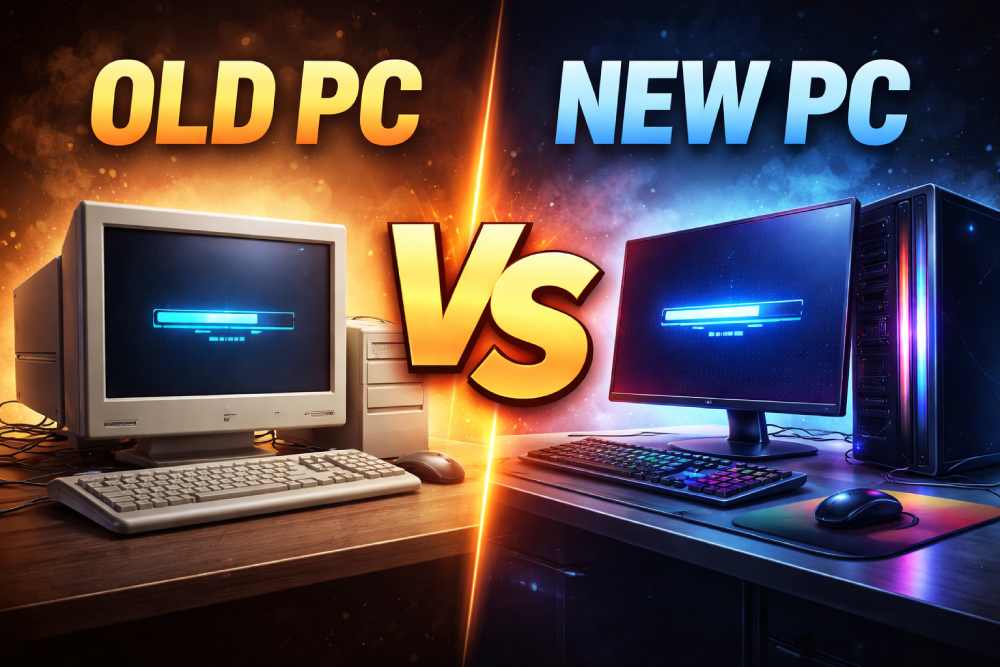
Why Old Computers Feel Faster Than New Ones
Your new PC isn’t slow, it’s just overloaded with garbage you didn’t ask for.
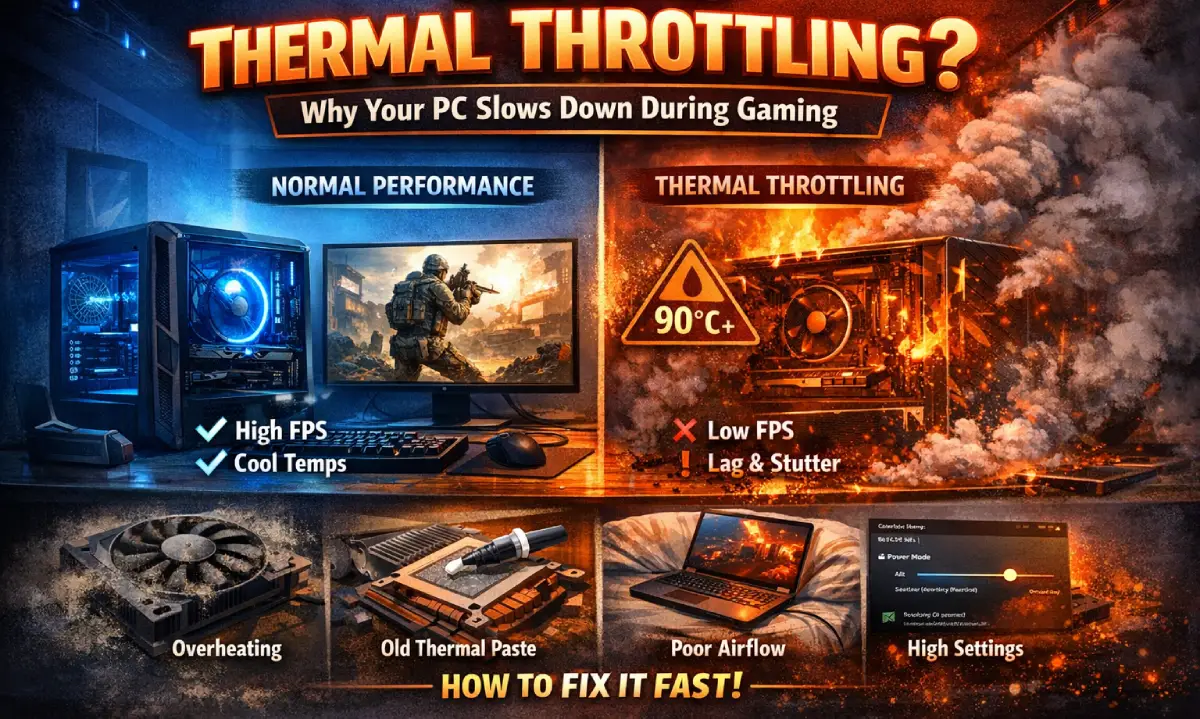
What Is Thermal Throttling? Why Your PC Slows Down During Gaming
PC slowing down during games? Learn what thermal throttling is, why it happens, and how to quickly fix overheating issues on Windows 10 and 11.
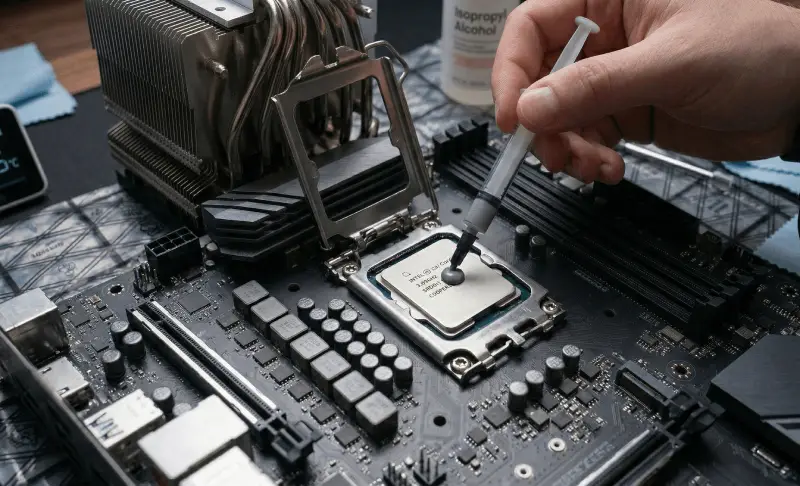
Why Is My CPU 100°C? Real Fix for Windows 10 & 11 Overheating
CPU hitting 100°C on Windows 10 or 11? Here’s the real fix that actually works step-by-step thermal paste replacement, dust cleaning, and fan checks.