
For a complete PC hardware guide, read: /pc-hardware/
Knowing whether your Windows operating system is 32-bit or 64-bit is important for installing software, drivers, and even understanding your computer’s capabilities. While 64-bit systems are now the standard, some older hardware or specific software might still require 32-bit. Fortunately, Windows 10 and 11 make it very easy to find this information.
Method 1: Using “About” Settings (Recommended)
This is the quickest and most straightforward way to find your system type in both Windows 10 and Windows 11.
- Open Settings (Press
Windows + I). - Navigate to System > About.
- In Windows 10, it’s usually
Settings > System > About. - In Windows 11, it’s
Settings > System > About.
- In Windows 10, it’s usually
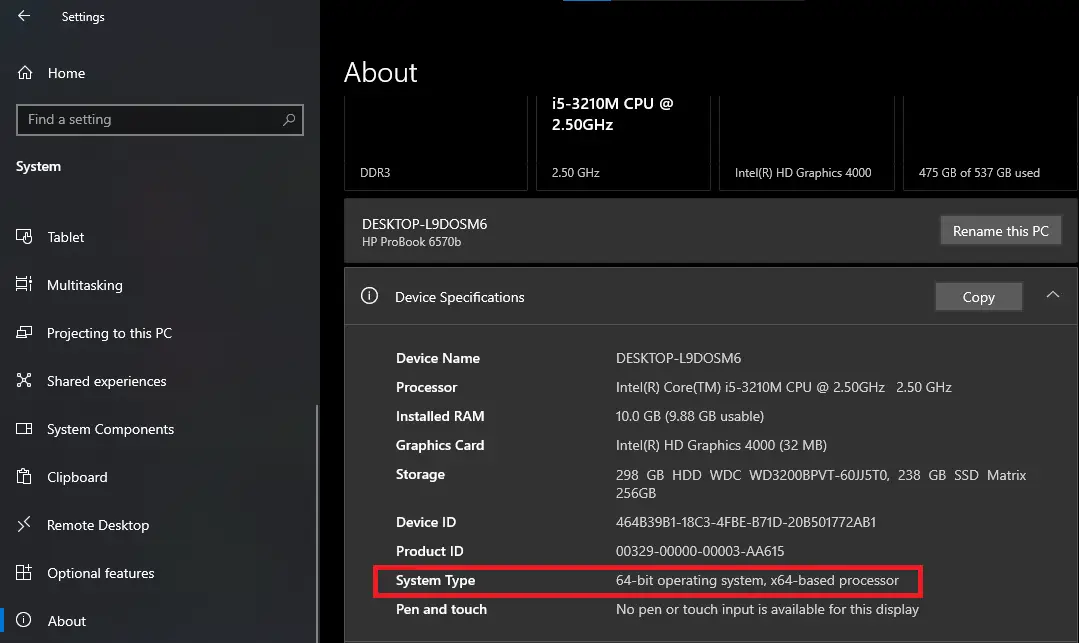
- Under “Device specifications,” look for System type. It will typically say “64-bit operating system, x64-based processor” or “32-bit operating system, x64-based processor” (if you have a 32-bit OS on a 64-bit capable CPU).
Method 2: Using System Information (msinfo32)
The System Information tool provides a more detailed overview of your system, including the system type.
- Press
Windows + Rto open the Run dialog. - Type
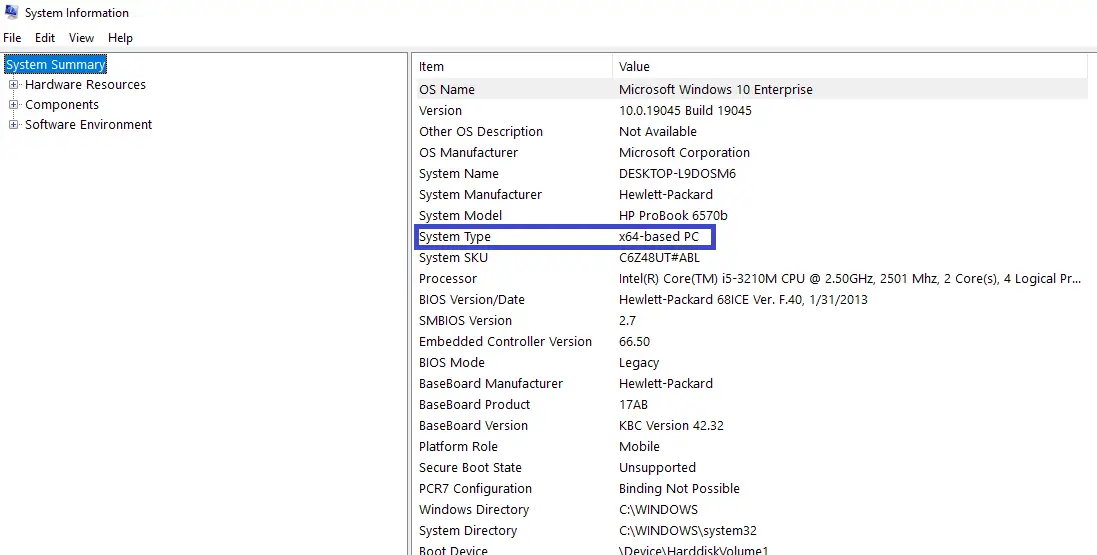
msinfo32and pressEnter. - In the System Information window, look for System Type in the right pane.
- For a 64-bit system, it will show “x64-based PC”.
- For a 32-bit system, it will show “X86-based PC”.
Method 3: Using Command Prompt
For those who prefer the command line, you can quickly check your system type using a simple command.
- Open Command Prompt by typing
cmdin the Windows Search bar and pressingEnter. - Type
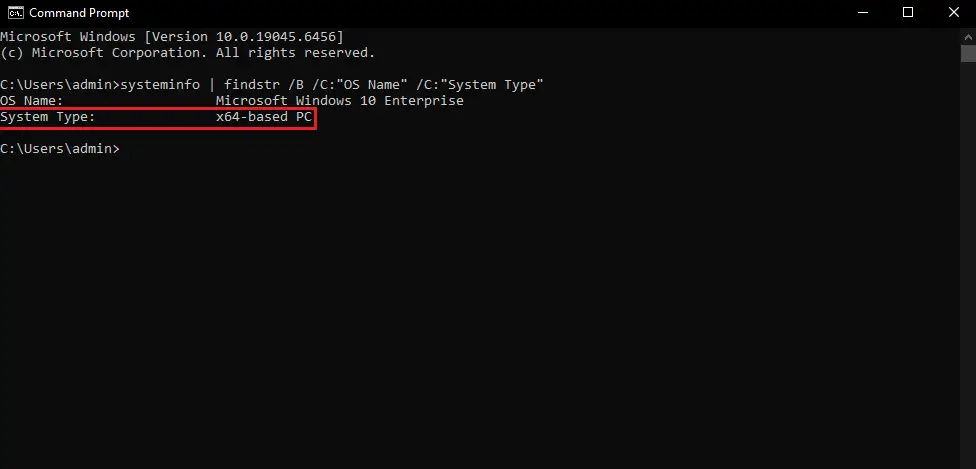
systeminfo | findstr /B /C:"OS Name" /C:"System Type"and pressEnter. - The output will display your “System Type” as either “X86-based PC” (32-bit) or “x64-based PC” (64-bit).
Whether you’re installing new software, troubleshooting, or just curious, checking your Windows system type (32-bit or 64-bit) is a simple task with multiple easy-to-use methods. Choose the one that’s most convenient for you!
Frequently Asked Questions (FAQ)
How do I know if my Windows is 32-bit or 64-bit?
Open Settings → System → About and check the System type section. It will show either “64-bit operating system” or “32-bit operating system.”
Can I upgrade from 32-bit Windows to 64-bit Windows?
Yes, but only if your processor supports 64-bit architecture. You will need to perform a clean installation of Windows to switch from 32-bit to 64-bit.
Is 64-bit Windows better than 32-bit?
Yes. A 64-bit system can use more RAM and provides better performance for modern applications and games compared to 32-bit Windows.
What does x64-based PC mean?
“x64-based PC” means your computer uses a 64-bit processor and supports a 64-bit operating system.
Can I run 32-bit programs on 64-bit Windows?
Yes. Most 32-bit programs run normally on 64-bit Windows, but 64-bit programs will not run on a 32-bit system.