
For a complete PC hardware guide, read: /pc-hardware/
Knowing your computer’s specifications (specs) is essential for various reasons, whether you’re troubleshooting issues, planning an upgrade, or checking if a new game or software will run. Windows offers several built-in tools to quickly find out details about your CPU, RAM, operating system, and more.
Method 1: Using System Information (msinfo32)
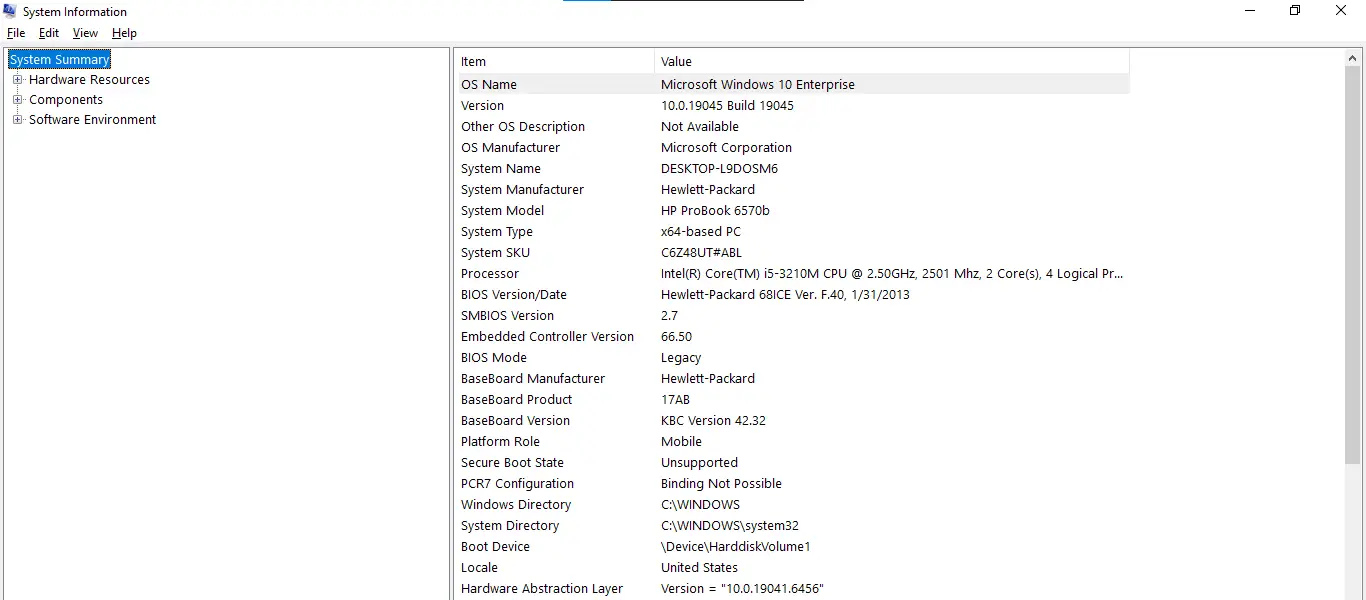
The System Information tool provides a comprehensive overview of your hardware and software environment.
- Press
Windows + Rto open the Run dialog. - Type
msinfo32and pressEnter. - The System Information window will open, displaying details like your OS name, system manufacturer, processor, installed physical memory (RAM), and more. You can navigate through the categories on the left pane for more specific information.
Method 2: Using the “About” Settings
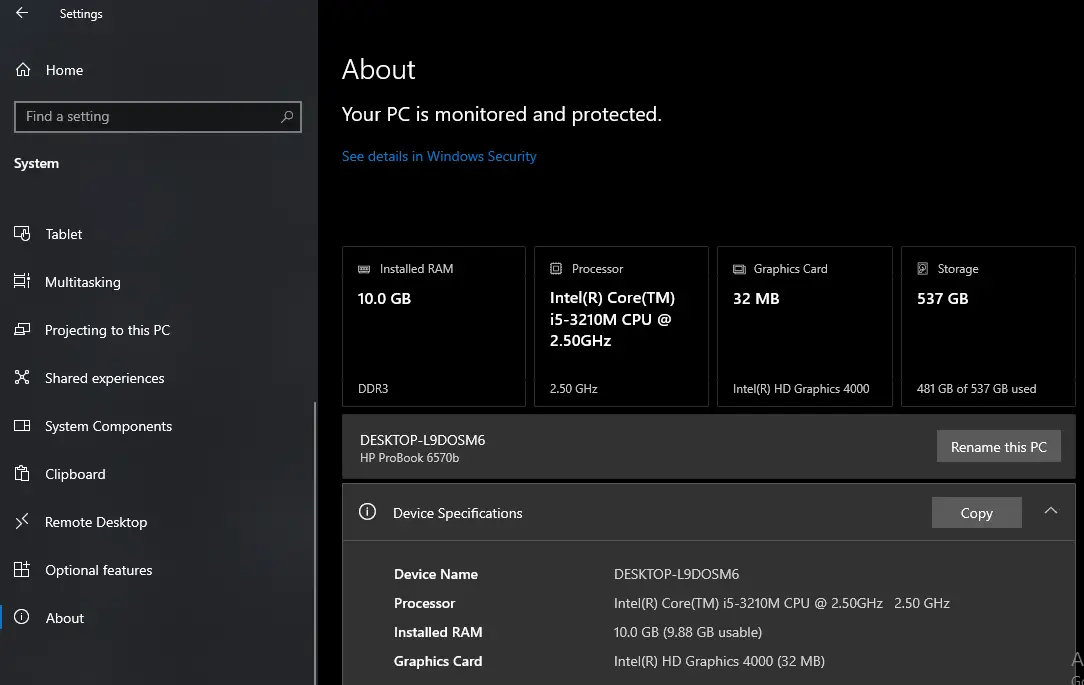
For a quick summary of your core system specs, the “About” section in Windows Settings is very convenient.
- Open Settings (Press
Windows + I). - Navigate to System > About.
- In Windows 10, it’s usually
Settings > System > About. - In Windows 11, it’s
Settings > System > About.
- In Windows 10, it’s usually
- Here you’ll find information about your device name, processor (CPU), installed RAM, device ID, product ID, system type, and Windows edition.
Method 3: Using Task Manager (for real-time performance)
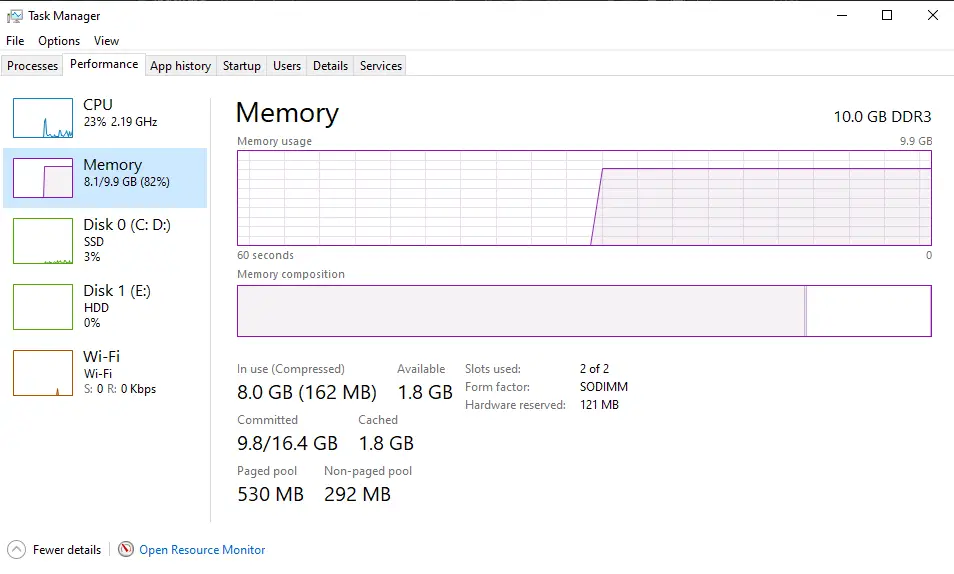
While not a full spec sheet, Task Manager is excellent for checking real-time CPU, memory, disk, and GPU usage, and provides basic hardware details.
- Right-click on the Taskbar and select Task Manager, or press
Ctrl + Shift + Esc. - Go to the Performance tab.
- Select CPU, Memory, Disk, or GPU from the left pane to see details about each component, including model names, speed, and current usage.
Whether you need a quick glance at your core components or a deep dive into your system’s configuration, Windows provides multiple straightforward ways to check your PC’s specifications. These methods are invaluable for troubleshooting, upgrading, or simply understanding your computer better.