Ultimate RAM & Memory Guide for Windows 10 & 11 (2026)
Complete guide to RAM and memory management in Windows 10 & 11, from checking RAM type to upgrading and optimization.
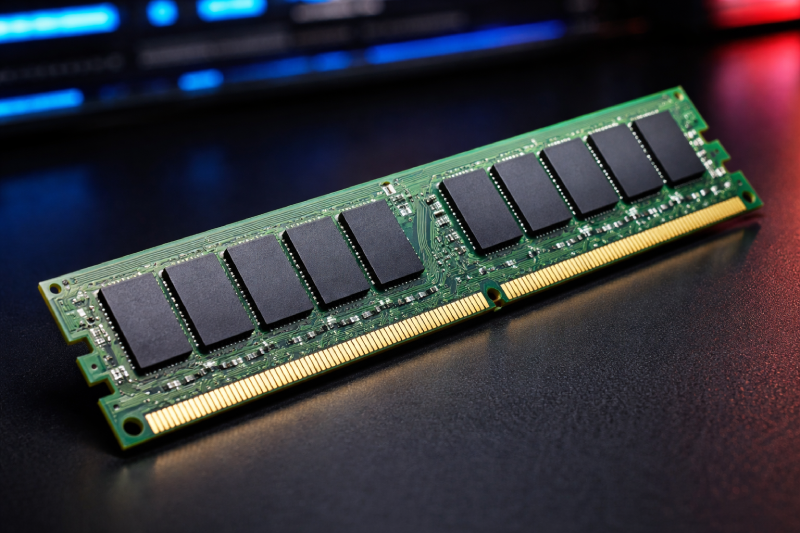
RAM is the most misunderstood component in Windows. Everyone talks about it, few understand how it actually works.
This guide covers everything you need to know about RAM and memory management - no myths, just practical knowledge that actually helps your system perform better.
Understanding RAM vs Storage
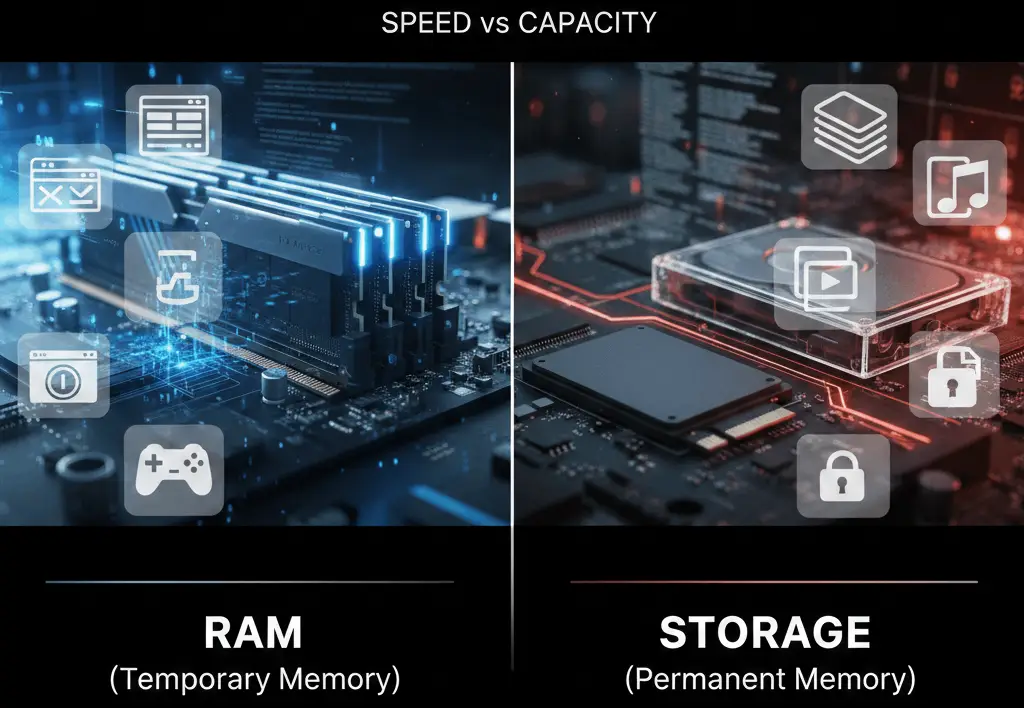
Most people confuse RAM with storage. They’re completely different things.
RAM is your computer’s short-term memory - fast, temporary, volatile. Storage is your long-term memory - slower, permanent, persistent.
For a detailed breakdown of this fundamental difference: RAM vs Storage: What’s the Real Difference
How Much RAM Do You Actually Need?
The amount of RAM you need depends on your usage:
- 4GB: Bare minimum for basic web browsing
- 8GB: Good for most users, borderline in 2026
- 16GB: Sweet spot for gaming and productivity
- 32GB+: For professionals and heavy multitaskers
Is 8GB vs 16GB Upgrade Worth It?
If you’re constantly hitting memory limits, upgrading from 8GB to 16GB is one of the most noticeable performance boosts you can get.
Learn the specifics: 8GB vs 16GB RAM Upgrade - Is It Worth It?
Checking Your Current RAM Setup
Before upgrading, you need to know what you have and what your system supports.
Check RAM Type (DDR3, DDR4, DDR5)
Different generations of RAM aren’t compatible. Here’s how to check what you have:
- Using Task Manager
- Using CPU-Z
- Using Command Prompt
Step-by-step instructions: How to Check RAM Type DDR3/DDR4/DDR5 in Windows
Check Maximum RAM Your Motherboard Supports
Your motherboard has limits on how much RAM it can handle and what types are compatible.
Don’t buy RAM until you know these limits: How to Check Maximum RAM Supported by Your Motherboard
Single Channel vs Dual Channel RAM
This is one of the biggest performance differences people miss.
Single Channel: One stick of RAM, half the bandwidth Dual Channel: Two matching sticks, double the bandwidth
The performance difference is real and noticeable: Single Channel vs Dual Channel RAM Explained
Memory Optimization Techniques
Even with the right amount of RAM, Windows can mismanage it.
Virtual Memory & Page File
Windows uses your disk as “virtual memory” when RAM gets full. This is slow but necessary.
Understanding this helps you optimize: What is Pagefile.sys and Should You Delete It?
Common Memory Myths
Don’t fall for these:
- “RAM cleaners” work: They don’t. Windows manages RAM better than any third-party tool
- “More RAM = faster PC”: Only up to a point. Diminishing returns apply
- “Empty RAM is wasted RAM”: Windows uses free RAM for caching, which is good
When to Upgrade RAM
Consider upgrading if:
- Task Manager shows 80%+ memory usage regularly
- You’re doing heavy multitasking (gaming + streaming + browser)
- Your system feels sluggish despite good CPU/SSD
- Professionals in video editing, 3D rendering, or development
RAM Upgrade Process
- Check current RAM type and motherboard limits
- Buy compatible RAM (same speed, type, preferably matching pairs)
- Install in correct slots for dual channel
- Verify in BIOS/UEFI and Windows
Bottom Line
RAM isn’t about having the most - it’s about having the right amount and configuration.
- 8GB works for basic users
- 16GB is the sweet spot for most
- Dual channel doubles your memory bandwidth
- Compatible RAM is more important than fast RAM
Get these basics right, and your system will feel much more responsive.
For more Windows optimization guides, check out our Windows Performance pillar page.
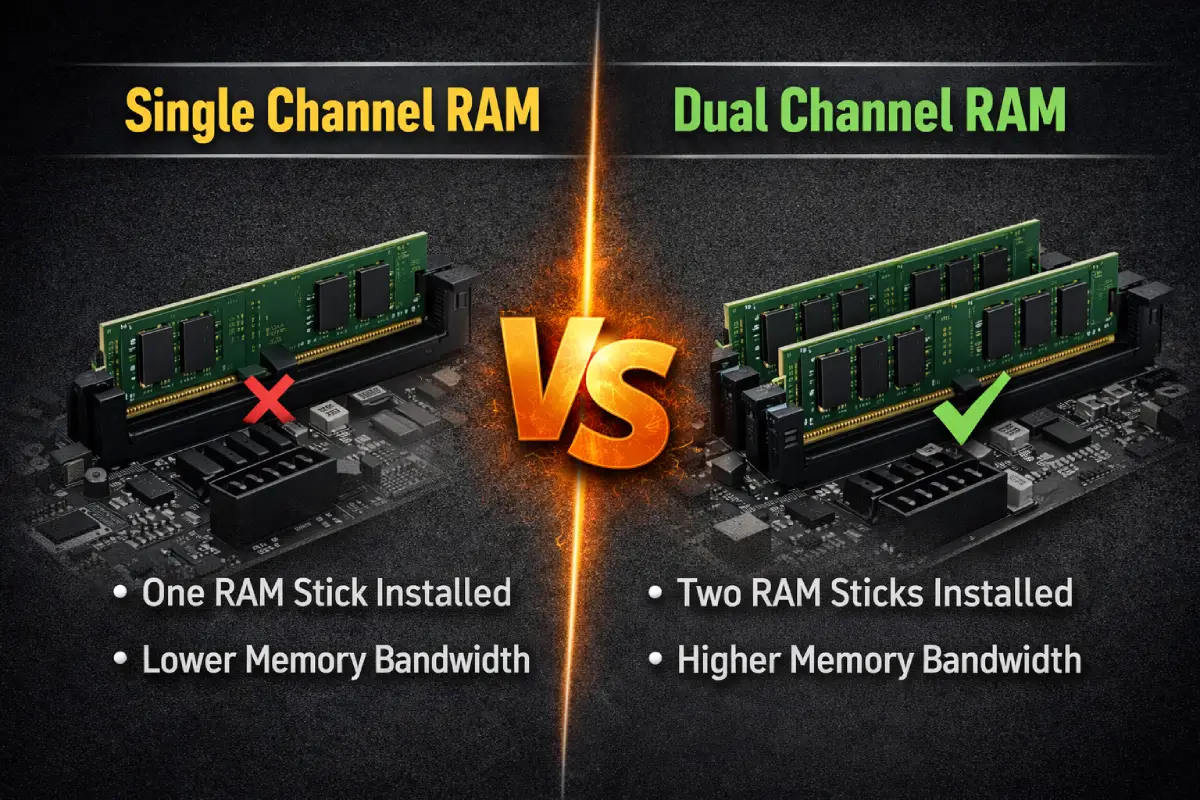
Single Channel vs Dual Channel RAM: Real Performance Difference
Understand the real performance difference between single channel and dual channel RAM. Learn when dual channel actually improves speed and when it barely matters.
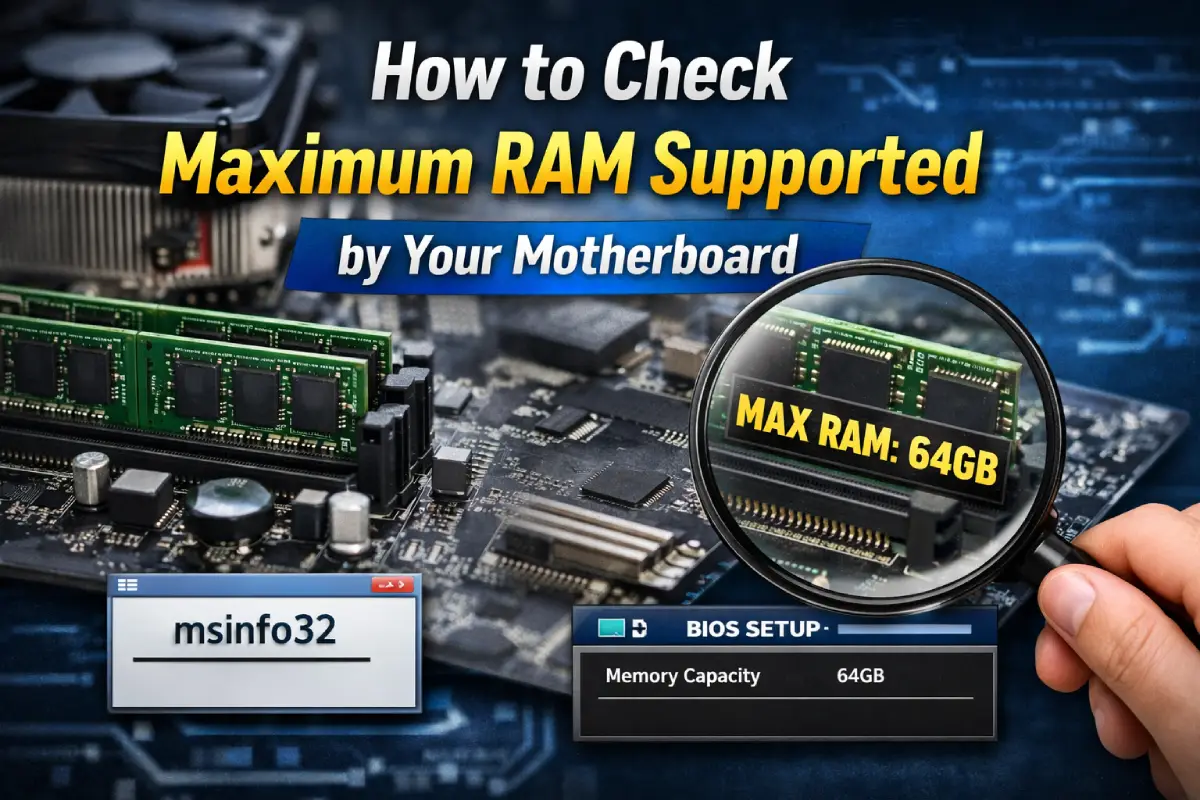
How to Check Maximum RAM Supported by Your Motherboard
Step-by-step guide to check the maximum RAM supported by your motherboard on Windows 10 and Windows 11 before upgrading.

8GB vs 16GB RAM: Is the Upgrade Worth It?
Trying to decide between 8GB and 16GB RAM on Windows 10 or 11? Here’s the real-world difference, who actually needs 16GB, and when upgrading is worth it.
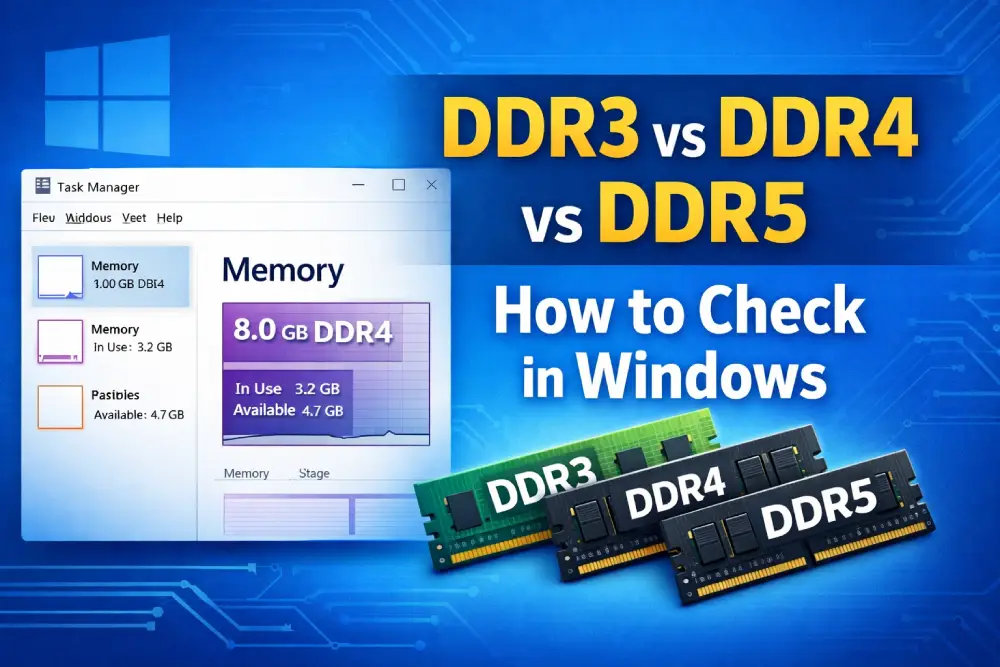
How to Check RAM Type (DDR3, DDR4, DDR5) in Windows 10 & 11 (3 Easy Methods)
Learn how to check RAM type (DDR3, DDR4, DDR5) in Windows 10 and Windows 11 using Task Manager, Command Prompt, and CPU-Z. Simple step-by-step beginner guide.
Ram vs Storage Whats the Real Difference
Demystify the common confusion between RAM (Random Access Memory) and storage (hard drives, SSDs). Learn their distinct roles in your computer's performance.