
For a complete RAM and memory optimization guide, read: /ram-memory/
If you’re planning to upgrade your PC or laptop, the first thing you need to know is your RAM type whether it’s DDR3, DDR4, or DDR5.
Installing the wrong RAM will not work, so checking your current RAM version is very important.
In this guide, you’ll learn 3 easy methods to check RAM type in Windows 10 and Windows 11.
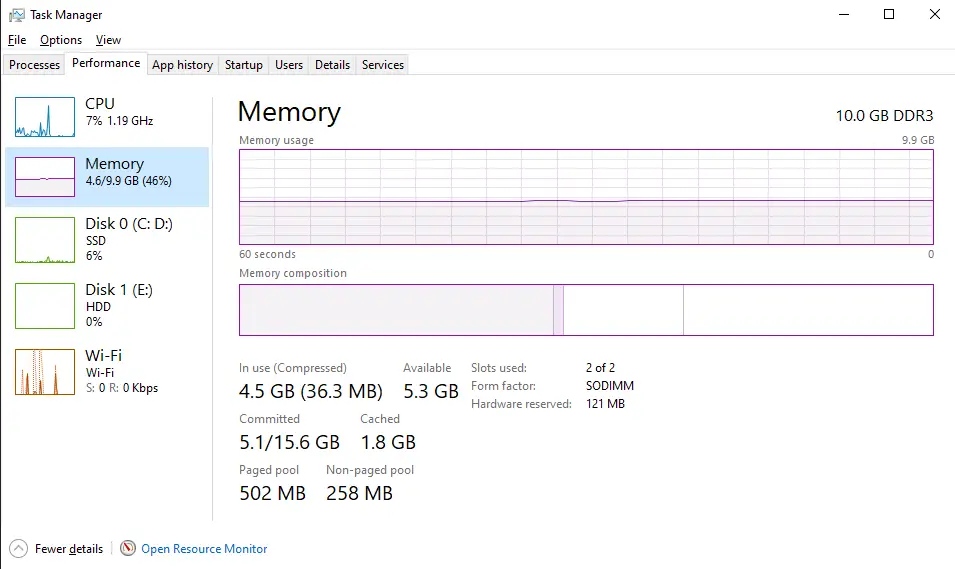
Method 1: Check RAM Type Using Task Manager (Fastest Method)
This is the easiest way to check basic RAM details.
Steps:
- Press Ctrl + Shift + Esc to open Task Manager
- Click on the Performance tab
- Select Memory from the left side
- Look at the top-right section
You may see:
- DDR3
- DDR4
- DDR5
Method 2: Check RAM Type Using Command Prompt
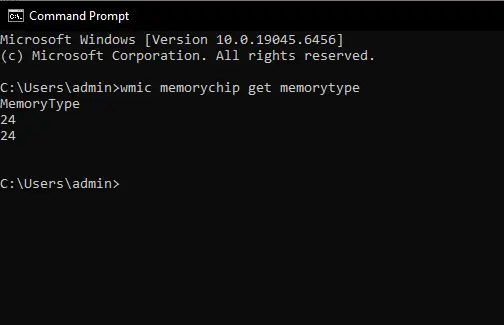
If Task Manager does not clearly show the DDR version, use Command Prompt.
Steps:
- Press Windows + R
- Type
cmdand press Enter - Enter the following command:
wmic memorychip get memorytype
- Press Enter
You will see a number like:
- 24 = DDR3
- 26 = DDR4
- 34 = DDR5
Method 3: Check RAM Type Using CPU-Z (Most Accurate Method)
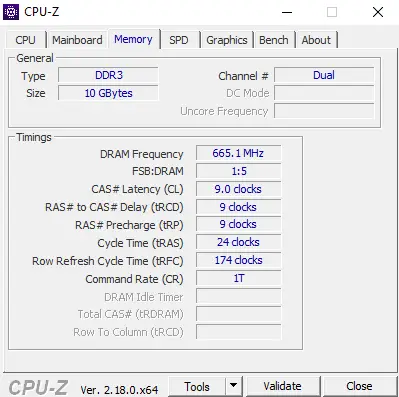
If you want detailed RAM information, use CPU-Z (free software).
Steps:
- Download and install CPU-Z
- Open CPU-Z
- Go to the Memory tab
- Look at the Type section
You will see:
- DDR3
- DDR4
- DDR5
Why Checking RAM Type is Important
- DDR4 RAM does not fit in DDR3 motherboard
- DDR5 is not compatible with DDR4 slots
- Buying wrong RAM wastes money
- RAM compatibility affects system stability
Always verify before upgrading.
Checking your RAM type in Windows takes less than 2 minutes.
Before upgrading, always check compatibility to avoid buying the wrong memory.
Now you can confidently upgrade your PC.
Frequently Asked Questions (FAQ)
How do I know if my RAM is DDR3 or DDR4?
Open Task Manager → Performance → Memory and check the RAM type.
If not visible, use the Command Prompt method or CPU-Z.
Can I upgrade from DDR3 to DDR4?
No. DDR3 and DDR4 use different motherboard slots.
You need a compatible motherboard to upgrade.
Is DDR5 better than DDR4?
Yes. DDR5 offers higher speed and better performance, but requires a DDR5-supported motherboard.