
For a complete RAM and memory optimization guide, read: /ram-memory/
If your PC has two RAM sticks but performance still feels the same… there’s a good chance it’s running in single channel mode.
This happens more often than people think. I’ve seen plenty of systems where the RAM was installed wrong, and the PC was basically leaving free performance on the table.
Let’s quickly clear up what actually changes between single channel and dual channel RAM, and how to make sure your system is using it properly.
What Single Channel RAM Means
Single channel simply means the CPU is communicating with one memory lane.
Even if you have multiple RAM sticks installed, the system might still run them as a single channel if they’re placed incorrectly.
Example situations:
• 1 × 8GB RAM stick
• 1 × 16GB RAM stick
• RAM installed in the wrong motherboard slots
In these cases, the system cannot use both memory lanes efficiently.
What you usually notice:
• Slightly slower app loading
• Lower gaming FPS (especially with integrated graphics)
• Slower file operations
Usually the system still works fine it’s just not using RAM bandwidth fully.
What Dual Channel RAM Actually Does
Dual channel allows the CPU to access two RAM lanes at the same time.
Think of it like opening two roads instead of one.
Instead of sending data through a single pathway, the CPU splits the workload across both memory channels.
Typical setup:
• 2 × 8GB RAM
• Installed in the correct paired slots
This effectively doubles memory bandwidth.
But one thing people miss: doubling bandwidth does not mean doubling performance.
Some programs benefit from it. Others barely care.
Real Performance Difference (What Actually Changes)
Here’s where many people get confused.
A lot of videos online make it sound like dual channel magically doubles PC speed. That’s not how it works.
In most cases the difference depends on what you’re doing on the PC.
Gaming with a Dedicated GPU
Usually: 0–10% difference
Most games rely more on the graphics card than RAM bandwidth.
You might gain a few FPS, but nothing dramatic.
Gaming with Integrated Graphics
This is where dual channel matters a lot.
Integrated graphics (Intel UHD / AMD Vega) use system RAM as VRAM.
In most cases, switching from single channel to dual channel can increase FPS by:
20–40%
Sometimes even more.
This is why budget laptops often feel slow with just one RAM stick installed.
Everyday Tasks
Things like:
• Browsing
• Office work
• Watching videos
Usually show very small differences.
You probably won’t notice anything unless you’re doing heavy multitasking.
How to Check If Your RAM Is Running in Dual Channel
This takes less than a minute.
Method 1 Using CPU-Z (Most Reliable)
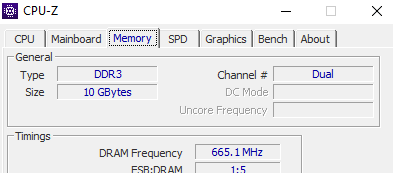
This is the method I personally recommend because Windows doesn’t always show channel mode clearly.
Steps:
- Download CPU-Z
- Open the program
- Click the Memory tab
- Look for Channel #
You will see something like:
• Single
• Dual
If it says Dual, everything is working correctly.
If it says Single, your RAM is not using both memory channels.
Method 2 Check BIOS (Sometimes Useful)
Restart your PC and enter BIOS.
Usually by pressing:
• DEL
• F2
• F10
Some motherboards show memory mode as Single Channel or Dual Channel on the main system information screen.
If this doesn’t appear, that’s normal. Not all BIOS menus display it.
How to Enable Dual Channel RAM
Most of the time the fix is surprisingly simple.
Step 1 Install RAM in the Correct Slots
Motherboards usually label slots like this:
A1 – A2 – B1 – B2
Dual channel typically works when RAM is installed in:
A2 + B2
These are usually the second and fourth slots from the CPU.
In most cases motherboard manuals confirm this.
Step 2 Use Matching RAM Sticks
Dual channel works best when both sticks match.
Example:
✔ 8GB + 8GB
✔ 16GB + 16GB
Mixed RAM like 8GB + 16GB can still work, but part of the memory will run in single channel.
Another small detail people forget is RAM speed.
If one stick is slower, the system will run both at the slower speed.
Step 3 Reseat the RAM
If your RAM should be dual channel but still shows single channel:
- Turn off the PC
- Remove the power cable
- Take out both RAM sticks
- Install them again firmly
In most cases this alone fixes the issue.
A Very Common Mistake
One thing I see all the time when helping people build PCs:
Installing RAM side by side.
Example layout:
CPU | RAM | RAM | Empty | Empty
This almost always forces single channel mode.
Correct layout usually looks like:
CPU | Empty | RAM | Empty | RAM
Usually the motherboard manual shows the recommended layout clearly.
When Dual Channel Doesn’t Make a Big Difference
Sometimes people upgrade RAM expecting huge performance gains.
But if your PC already has:
• A strong GPU
• 16GB or more RAM
• SSD storage
Then the difference might be small.
Dual channel mostly helps systems that rely heavily on memory bandwidth, especially integrated graphics systems.
Practical Takeaway
If your PC has two RAM sticks, always make sure they’re installed in the correct paired slots.
It takes less than a minute to check, and in some systems especially laptops or PCs using integrated graphics the performance difference can be surprisingly noticeable.
Usually this is one of the easiest free performance improvements you can make.
FAQ
Does Dual Channel Increase FPS?
Sometimes.
With a dedicated GPU the difference is usually small.
With integrated graphics the improvement can be significant.
Can I Use Dual Channel with Different RAM Sizes?
Yes, partially.
Example:
8GB + 16GB
The first 8GB from each stick runs in dual channel, while the remaining 8GB runs in single channel.
It works, just not perfectly balanced.
Is Dual Channel Enabled Automatically?
Yes.
In most cases there is no BIOS setting required.
If the RAM sticks are compatible and installed in the correct slots, the motherboard enables it automatically.
If this doesn’t work, the RAM placement is usually the issue.