Ultimate Windows Security & Privacy Guide for Windows 10 & 11 (2026)
Complete guide to Windows 10 & 11 security and privacy, from antivirus protection to app locking and privacy settings.

Windows security isn’t just about antivirus software. It’s about understanding what actually protects you, what doesn’t, and how to maintain your privacy without sacrificing usability.
This guide covers real security practices that work - not the fear-based marketing you see everywhere.
Antivirus and Malware Protection
Do You Really Need Antivirus?
Windows Defender has become surprisingly good. For most users, it’s sufficient.
Windows Defender strengths:
- Built-in and always updated
- Low resource usage on modern systems
- Good detection rates for common threats
- No nagging upsells
When third-party antivirus might help:
- You need specific features (ransomware protection, firewall)
- You want central management for multiple PCs
- You need phone/chat support
Understanding this helps you make informed decisions: Best Free Antivirus for Windows 11
Windows Defender vs Third-Party Antivirus
Windows Defender is now called Microsoft Defender and has improved significantly:
- Real-time protection
- Cloud-based protection
- Ransomware protection
- Network protection
Third-party antivirus may offer:
- Better zero-day detection
- Additional privacy features
- System optimization tools
- Better user interface
App and Data Protection
Lock Apps Without Software
Sometimes you want to prevent access to specific applications without installing third-party tools.
Built-in Windows options:
- User accounts with restrictions
- AppLocker (Pro/Enterprise editions)
- Group Policy restrictions
- Registry modifications
Practical solutions: Lock Apps in Windows 11 Without Software
File and Folder Protection
Encryption options:
- BitLocker (Pro/Enterprise)
- EFS (Encrypting File System)
- Third-party encryption tools
Access control:
- User account permissions
- Folder access restrictions
- Share permissions for network access
Privacy Settings and Data Protection
Windows Privacy Settings
Windows collects significant amounts of data by default. Here’s what to check:
Key privacy settings:
- Telemetry data collection
- Location services
- Advertising ID
- Diagnostic data
- App permissions
How to adjust:
- Settings > Privacy & Security
- Review app permissions
- Disable unnecessary data collection
- Control advertising personalization
Browser Privacy
Microsoft Edge privacy:
- Tracking prevention
- InPrivate browsing
- Password monitoring
- Kids mode
Alternative browsers:
- Firefox (privacy-focused)
- Brave (built-in ad blocking)
- Chrome (Google ecosystem)
Network Security
Windows Firewall
Windows Firewall is actually pretty good when configured properly:
Basic configuration:
- Enable for all network profiles
- Block incoming connections by default
- Allow required apps through
Advanced options:
- Custom rules for specific apps
- Network profile management
- Logging and monitoring
Safe Browsing Practices
Essential practices:
- Use HTTPS whenever possible
- Avoid suspicious downloads
- Keep software updated
- Use ad blockers
Security extensions:
- uBlock Origin (ad blocking)
- HTTPS Everywhere
- Privacy Badger
Common Security Threats
Malware Types
Viruses: Self-replicating malicious code Ransomware: Encrypts files for payment Spyware: Steals personal information Adware: Shows unwanted advertisements Trojans: Disguised as legitimate software
Phishing and Social Engineering
Common tactics:
- Fake emails from known companies
- Urgent requests for personal information
- Suspicious links and attachments
- Tech support scams
Protection methods:
- Verify sender identity
- Check URLs before clicking
- Use two-factor authentication
- Be skeptical of urgent requests
Security Best Practices
Essential Security Habits
- Keep Windows updated: Security patches are crucial
- Use strong passwords: Unique, complex passwords for each service
- Enable two-factor authentication: Wherever available
- Regular backups: Protect against ransomware
- Review app permissions: Minimize data access
Backup Strategy
3-2-1 backup rule:
- 3 copies of important data
- 2 different storage types
- 1 copy off-site/online
Backup options:
- Windows File History
- Cloud storage (OneDrive, Google Drive)
- External drives
- Network Attached Storage (NAS)
When Security Becomes Annoying
Balancing Security and Usability
Common annoyances:
- Too many security prompts
- Slow system performance
- Blocked legitimate applications
- Complex setup processes
Solutions:
- Configure smart security settings
- Use whitelist approaches
- Educate users on real threats
- Focus on high-impact protections
Bottom Line
Good Windows security comes from:
- Smart defaults: Windows Defender + Windows Firewall
- User awareness: Understanding real threats
- Regular maintenance: Updates and backups
- Privacy controls: Limiting data collection
- Balance: Security without sacrificing usability
Most users don’t need expensive security suites. Windows built-in tools, combined with smart practices, provide excellent protection.
For more Windows optimization guides, check out our Windows Performance pillar page.
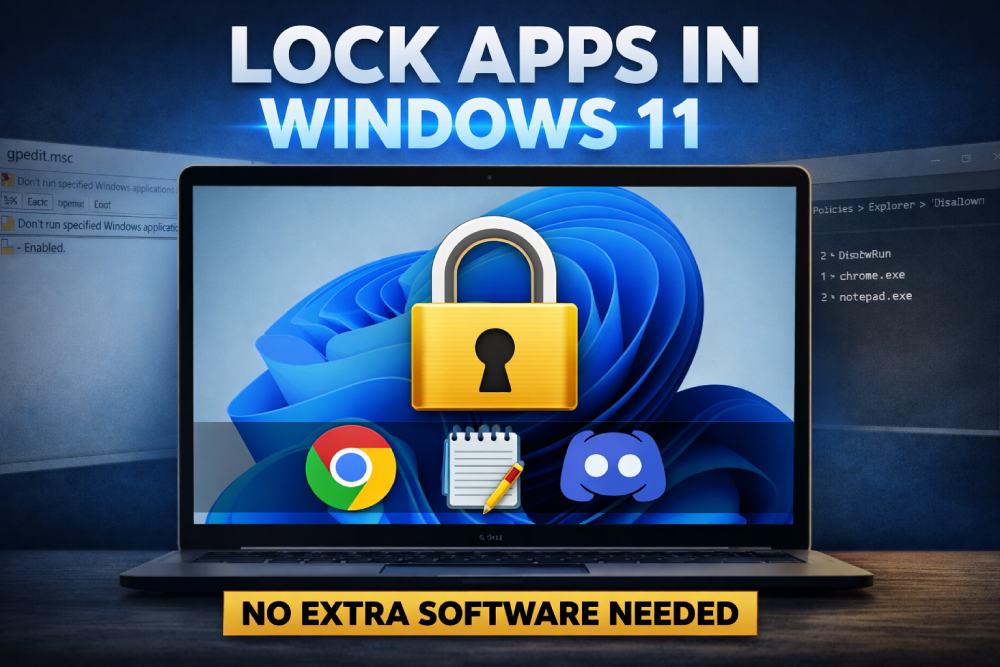
How to Lock Apps in Windows 11 Without Any Software
Windows doesn’t give you app lock, but you can still force it with a built-in trick.
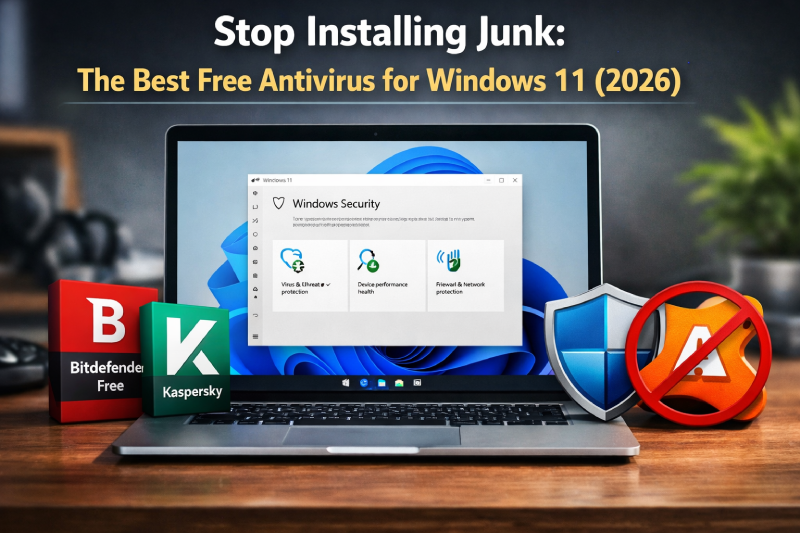
Best Free Antivirus for Windows 11 (And Why You Probably Don’t Need One)
Most free antivirus tools slow your system more than they protect it.