Ultimate Guide to Speed Up Windows 10 & 11 (2026)
Complete guide to optimize Windows 10 and 11 performance with proven techniques and fixes.
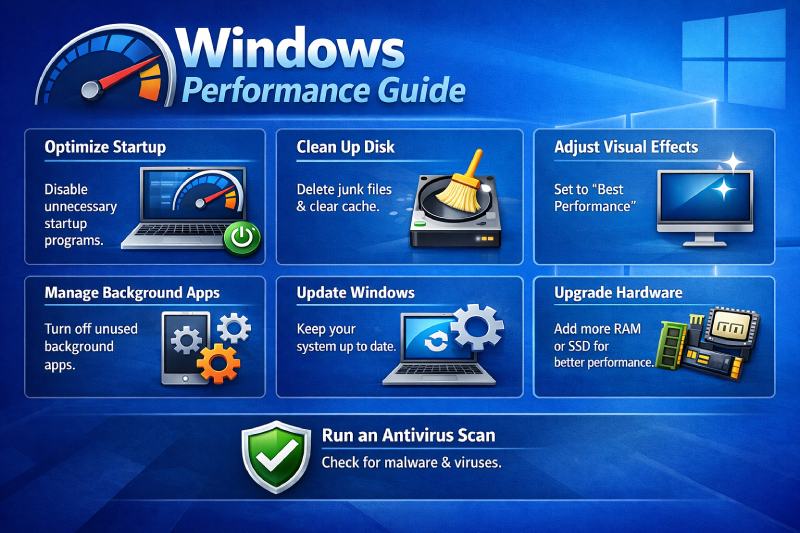
Windows gets slower over time. That’s just how it works. But you can fight back.
This guide covers everything that actually matters for Windows performance - no fake optimization tips, no registry hacks that do nothing, just real fixes that work.
Why Windows Slows Down Over Time
The first thing you need to understand is that Windows isn’t designed to stay fast forever. Background processes accumulate, temporary files pile up, and system settings get messed up.
For a deep dive into this problem, read our detailed analysis: Why Windows Gets Slow Over Time
Disk Usage Optimization
High disk usage is one of the most common performance killers in Windows. When your disk is running at 100%, everything else slows to a crawl.
Fix 100% Disk Usage
The most annoying issue is when your disk usage hits 100% and stays there. This usually happens because of:
- Windows Search indexing
- Superfetch/Prefetch service
- Antivirus scans
- System updates running in background
Our step-by-step guide covers all the fixes: Fix 100% Disk Usage in Windows 10 & 11
Memory Management
RAM is where your computer does its active work. When RAM gets full, Windows starts using your slow disk as virtual memory, killing performance.
Reduce RAM Usage
To keep your system responsive, you need to manage RAM properly:
- Close unnecessary background apps
- Disable startup programs
- Adjust visual effects
- Clear memory leaks
Learn how to optimize RAM usage: Reduce RAM Usage in Windows 10 & 11
CPU Performance
Your CPU is the brain of your computer. When it’s maxed out, everything slows down.
Lower CPU Usage
High CPU usage can be caused by:
- Background processes
- Malware
- System updates
- Poorly optimized apps
Get your CPU usage under control: Lower CPU Usage in Windows 10 & 11
Application Performance
Slow applications are frustrating and kill productivity. Windows 11 introduced some new performance issues with app launching.
Fix Slow Apps
If your apps are taking forever to open:
- Check for app updates
- Clear app cache
- Reset problematic apps
- Optimize startup settings
Fix slow app launches: Windows 11 Apps Opening Slow Fix
Visual Performance
Windows animations and visual effects look nice but can make your system feel sluggish, especially on older hardware.
Fix Choppy Animations
If animations are stuttering and making your system feel slow:
- Adjust visual effects settings
- Update graphics drivers
- Disable unnecessary animations
- Check for system resource conflicts
Smooth out your animations: Fix Choppy Animations in Windows 11
Quick Performance Boosts
Sometimes you just need your PC to be faster right now. Here are some quick wins.
Speed Up Laptop in 5 Minutes
For immediate performance improvements:
- Clear temporary files
- Disable startup programs
- Adjust power settings
- Restart your system
Get these quick fixes: Speed Up Laptop in 5 Minutes
Performance Monitoring
To keep your system running optimally, you need to monitor what’s happening under the hood.
Use Task Manager to track:
- CPU usage
- Memory usage
- Disk activity
- Network usage
- Startup impact
Advanced Optimization
Once you’ve covered the basics, consider these advanced techniques:
- SSD optimization
- Registry cleanup (carefully)
- Service management
- Power plan customization
Common Performance Myths
Avoid these fake optimization tips that don’t work:
- Registry cleaners (mostly useless)
- RAM cleaners (Windows manages RAM fine)
- Third-party “optimizers” (often malware)
- Disabling Windows Update (security risk)
When to Reinstall
Sometimes the best fix is a fresh Windows installation. Consider this if:
- Your system is 3+ years old
- You’ve tried all other fixes
- Performance is still terrible
- You have malware that won’t go away
Bottom Line
Windows performance optimization isn’t about one magic fix. It’s about:
- Understanding the root causes
- Applying the right fixes for your specific issues
- Maintaining your system regularly
- Knowing when to escalate to more drastic measures
Start with the guides above, focus on your biggest pain points first, and work your way through systematically.
Your Windows system can be fast again - you just need to know what to fix and how to fix it properly.
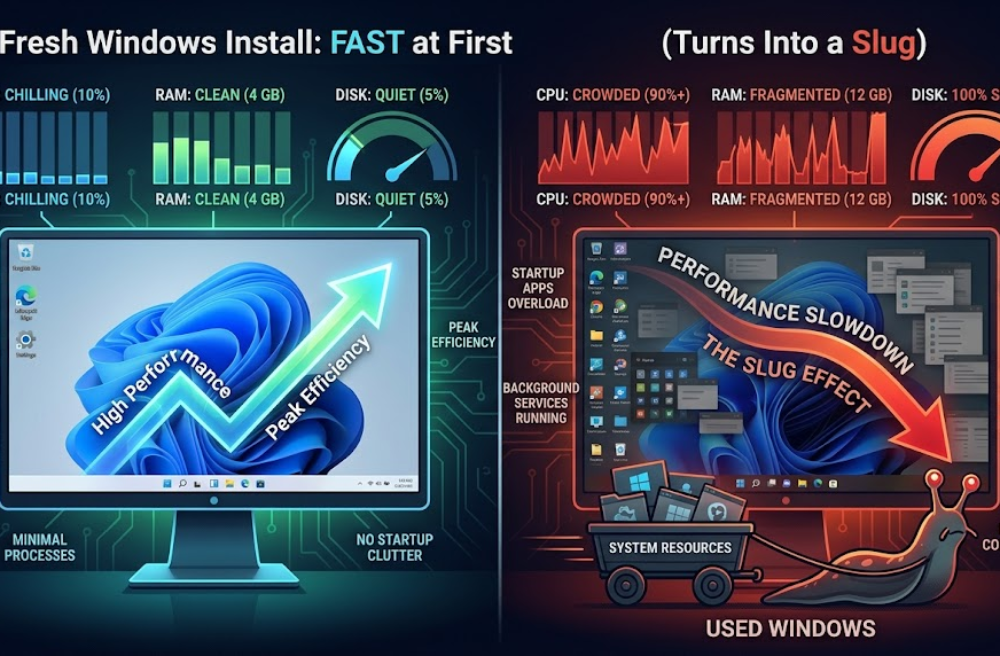
Why Windows Gets Slow Over Time (And What Actually Causes It)
Windows doesn't just get slow - it gets overloaded. Here's what actually causes performance degradation over time.
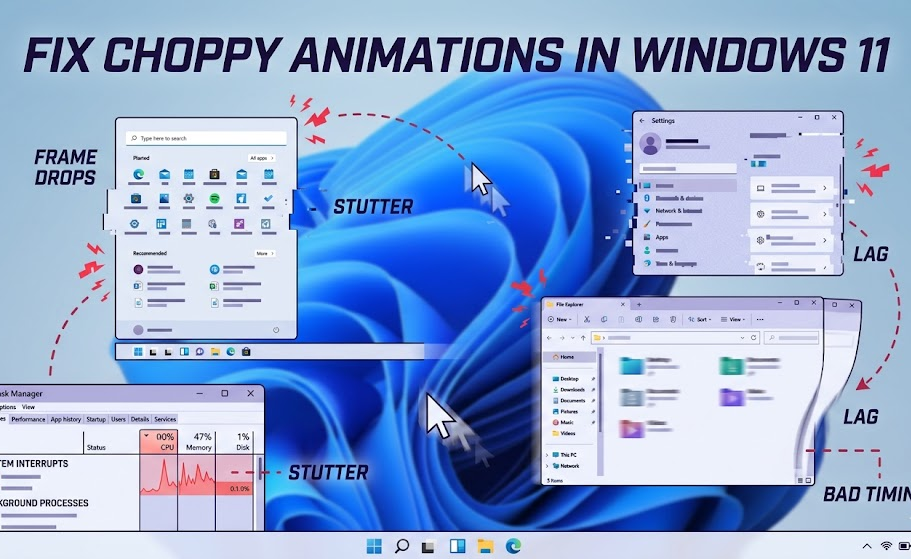
How to Fix Choppy Animations in Windows 11
Choppy animations aren’t about GPU power it’s timing, load, and bad scheduling.
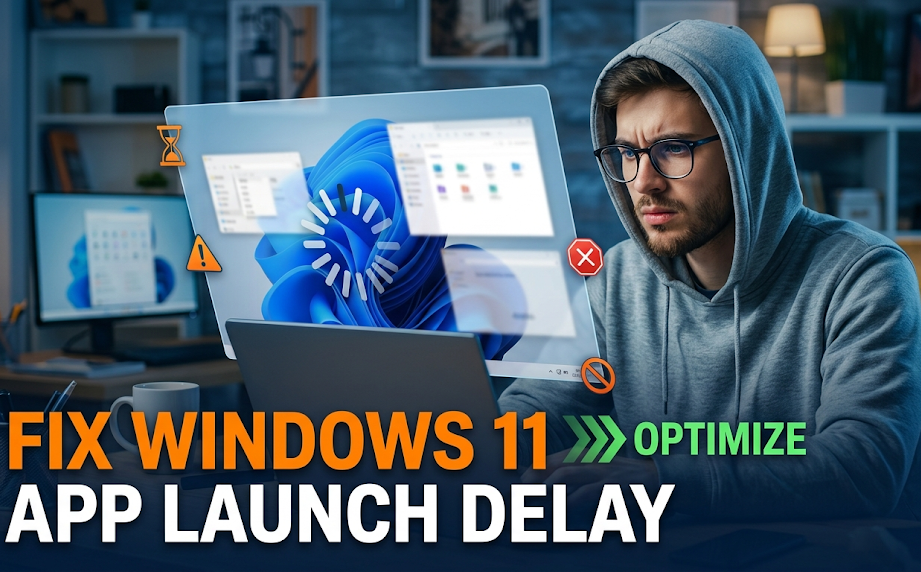
Why Apps Open Slow on Windows 11
If apps take forever to open on Windows 11, your system isn’t slow it’s misconfigured.
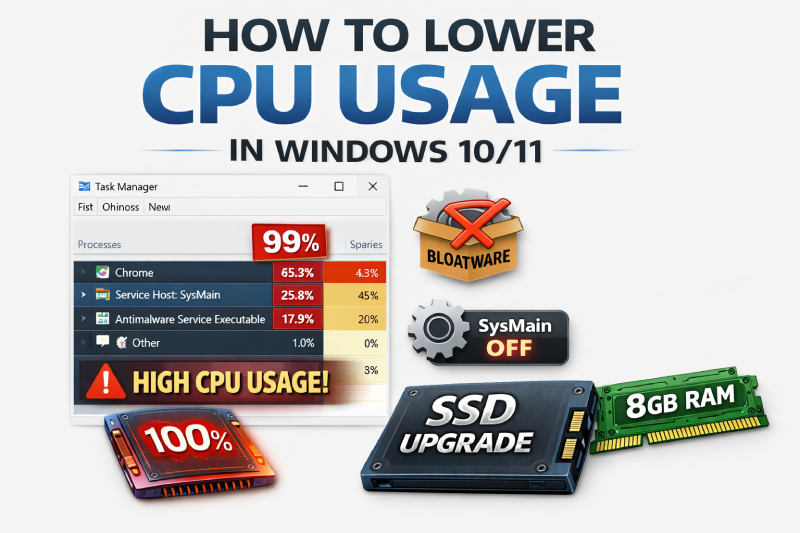
How to Lower CPU Usage in Windows 10/11
Learn how to lower high CPU usage in Windows 10 and Windows 11 with practical fixes that actually work.
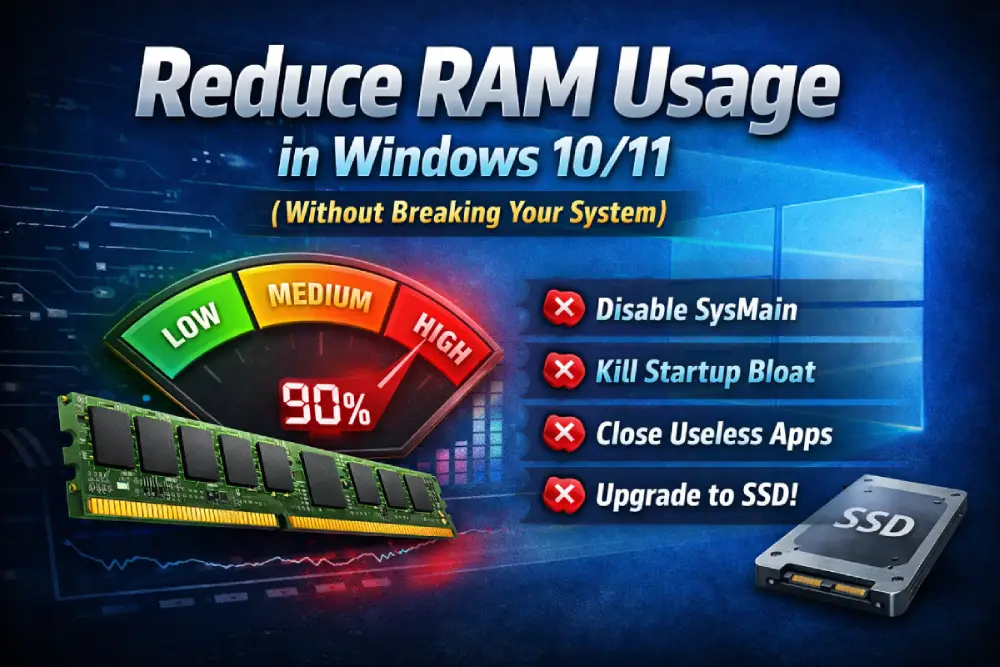
Reduce RAM Usage in Windows 10/11 (Without Breaking Your System)
Reduce high RAM usage in Windows 10 and 11 with practical fixes that actually work-no useless tweaks or risky changes.
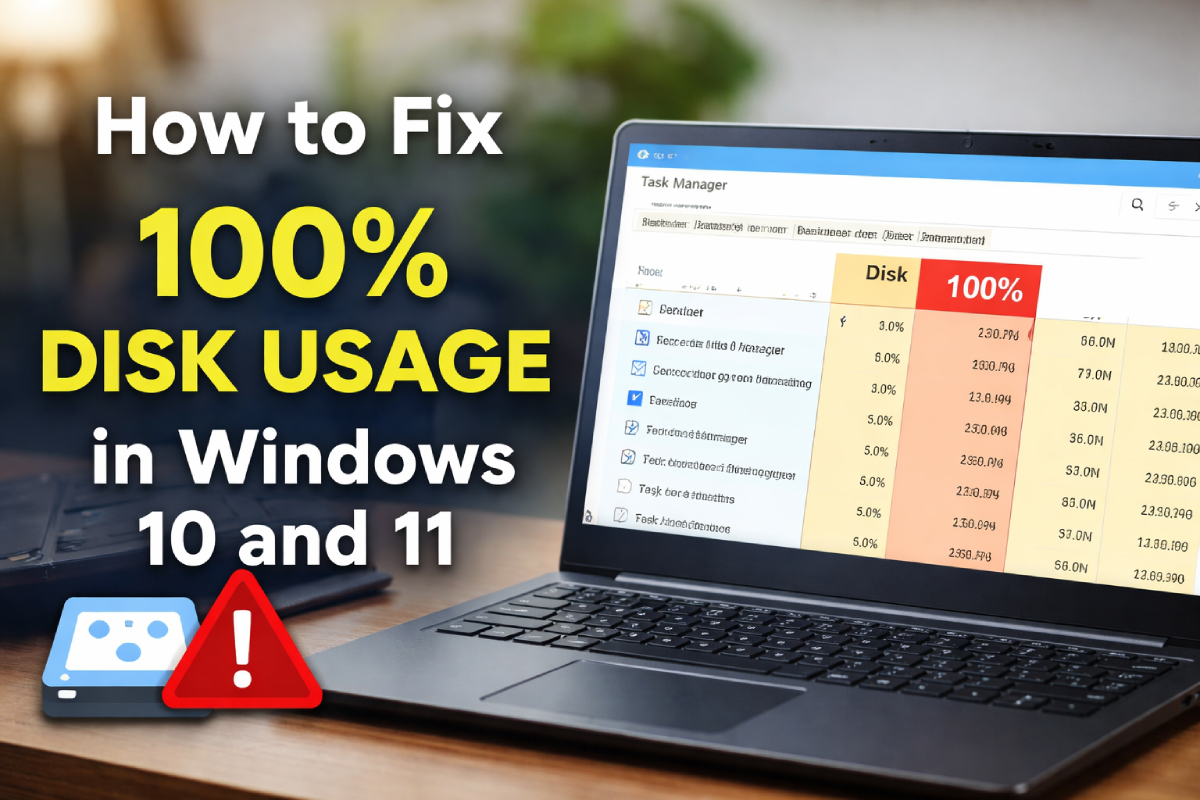
How to Fix 100% Disk Usage in Windows 10 and 11
Learn how to fix the frustrating 100% disk usage problem in Windows 10 and Windows 11 with simple step-by-step methods that actually work.
How to Speed Up Your Laptop in 5 Minutes
A practical 5-minute guide to make a slow Windows 10 or Windows 11 laptop faster by disabling startup apps, freeing memory, and fixing common performance killers.