Ultimate Windows Tips & Productivity Guide for Windows 10 & 11 (2026)
Complete guide to Windows 10 & 11 productivity tips, from batch file operations to custom context menus and screenshot management.
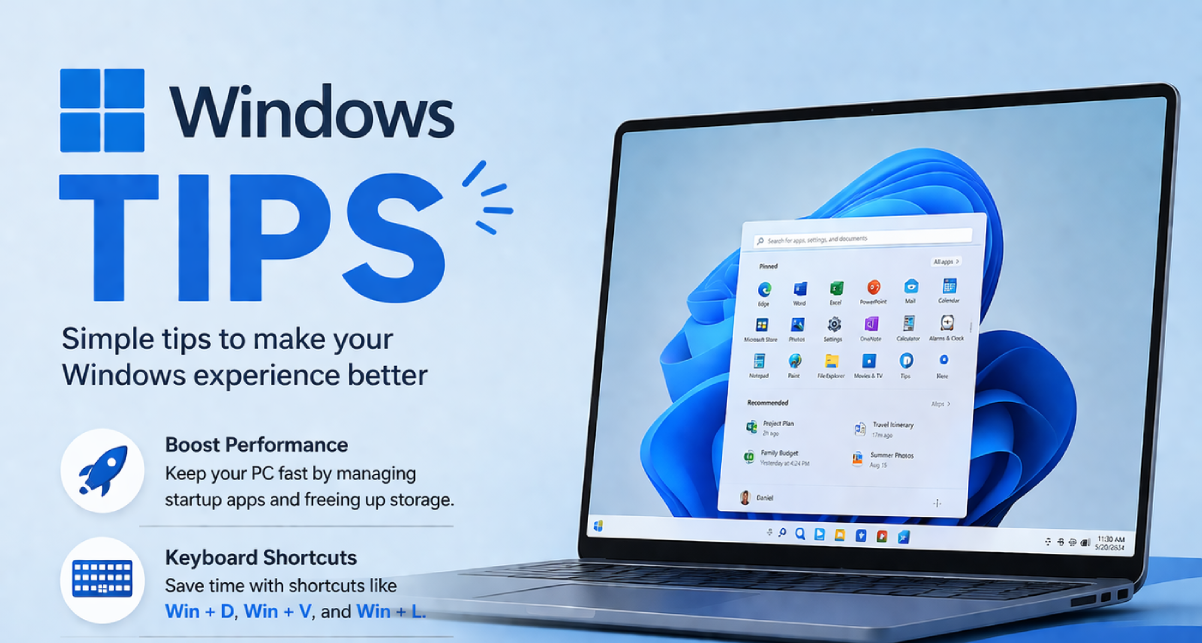
Windows has tons of hidden productivity features that most people never use. These aren’t just nice-to-know tricks - they can save you hours of repetitive work.
This guide covers the most practical Windows productivity tips that actually make a difference in your daily workflow.
File Management Efficiency
Batch File Operations
Managing multiple files manually is time-consuming. Windows has built-in tools that can handle batch operations efficiently.
Batch Rename Multiple Files
Renaming files one by one is tedious. Windows lets you rename multiple files at once using simple patterns.
Methods available:
- File Explorer batch rename
- Command Prompt batch operations
- PowerShell advanced renaming
Step-by-step guide: Rename Multiple Files at Once in Windows 10/11
Change File Extensions
Sometimes you need to change file extensions for compatibility or conversion purposes.
Important: Be careful when changing extensions - it can make files unusable if done incorrectly.
Safe methods: Change File Extension in Windows 10
Understanding File Extensions vs Formats
Many people confuse file extensions with file formats. Understanding the difference helps with file management and troubleshooting.
File Extension: The suffix after the dot (.txt, .jpg, .pdf) File Format: The actual structure and encoding of the file content
Clear explanation: Difference Between File Extension and File Format
Customization and Automation
Custom Context Menu
The right-click context menu is your productivity shortcut center. Customizing it can save you tons of clicks.
What you can add:
- Frequently used programs
- Custom commands
- Folder-specific actions
- System utilities
Create your own: Create Custom Context Menu in Windows 10/11
Screenshot Management
Screenshots are essential for documentation, sharing, and troubleshooting. Windows offers multiple ways to capture and manage them.
Change Screenshot Save Location
By default, Windows saves screenshots to the Pictures folder. You can change this to a more convenient location.
Benefits of custom location:
- Easier access
- Better organization
- Automatic cleanup setup
How to change: Change Screenshot Save Location in Windows 11
Productivity Best Practices
File Organization System
Create a logical folder structure that works for your workflow:
- Project-based folders: Group related files together
- Date-based organization: For time-sensitive work
- Category-based folders: For different types of content
- Archive system: Move completed projects to archive
Keyboard Shortcuts Worth Learning
Essential shortcuts:
Win + E: Open File ExplorerCtrl + Shift + N: Create new folderF2: Rename selected itemCtrl + A: Select all itemsAlt + Tab: Switch between apps
Automation Tools
Built-in Windows tools:
- Task Scheduler: Automate repetitive tasks
- PowerShell: Advanced automation
- Batch files: Simple automation scripts
- Windows Script Host: More complex scripting
Common Productivity Issues
Slow File Operations
Causes: HDD storage, fragmented files, background processes Solutions: SSD upgrade, defragmentation, process management
File Access Denied
Causes: Permissions issues, file in use, admin rights required Solutions: Take ownership, check file locks, run as administrator
Context Menu Bloat
Problem: Too many options slow down right-click Solution: Clean up context menu entries, use selective tools
Advanced Tips
File Explorer Tweaks
- Quick Access: Pin frequently used folders
- File name extensions: Show extensions for better file management
- Hidden files: Enable when needed for troubleshooting
- Preview pane: Quick file preview without opening
Search Optimization
- Indexing options: Control what gets indexed
- Search filters: Use advanced search operators
- Saved searches: Create reusable search queries
Backup and Sync
- File History: Automatic backup of important folders
- OneDrive integration: Cloud sync for important files
- System restore: Protect system configuration
Bottom Line
Windows productivity comes from:
- Efficient file management: Batch operations and smart organization
- Customization: Tailor Windows to your workflow
- Automation: Reduce repetitive manual work
- Keyboard shortcuts: Faster navigation and operations
Most productivity gains come from learning a few key features and using them consistently, not from knowing every possible Windows trick.
For more Windows optimization guides, check out our Windows Performance pillar page.
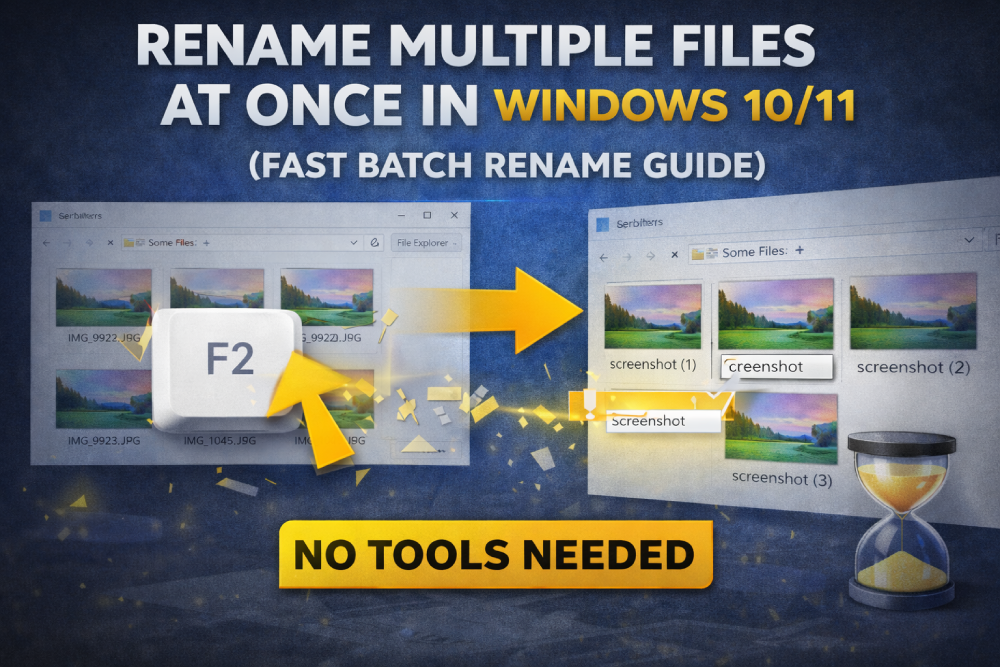
Rename Multiple Files at Once in Windows 10/11
Renaming files one by one is slow, Windows already has a faster way built in.
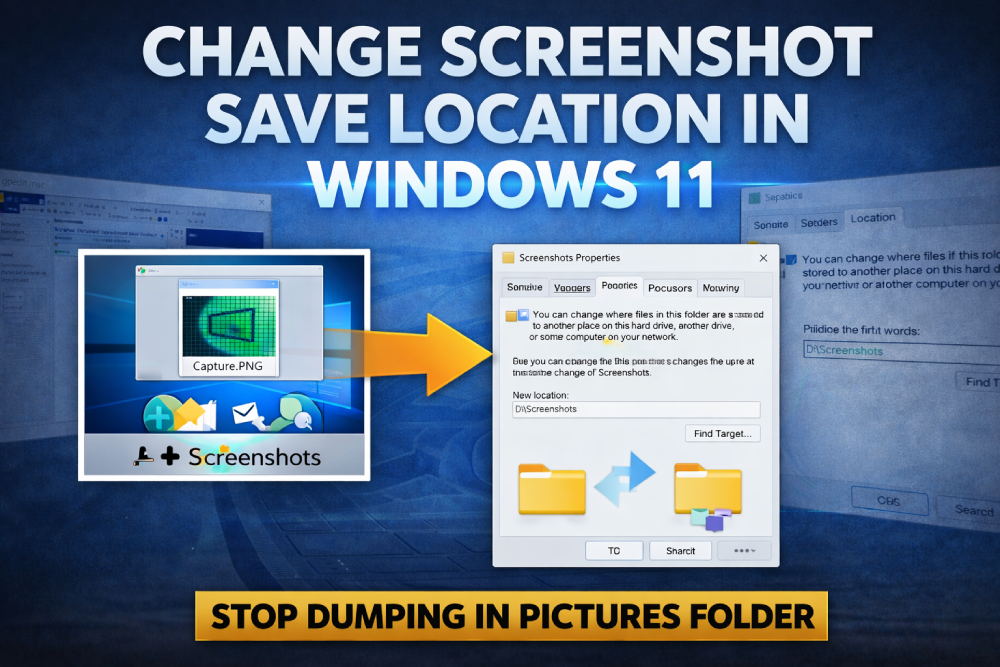
How to Change Screenshot Save Location in Windows 11
For a complete Windows tips and productivity guide, read: [/windows-tips/](/windows-tips/) Windows keeps dumping screenshots in one folder, here’s how to actually take control.
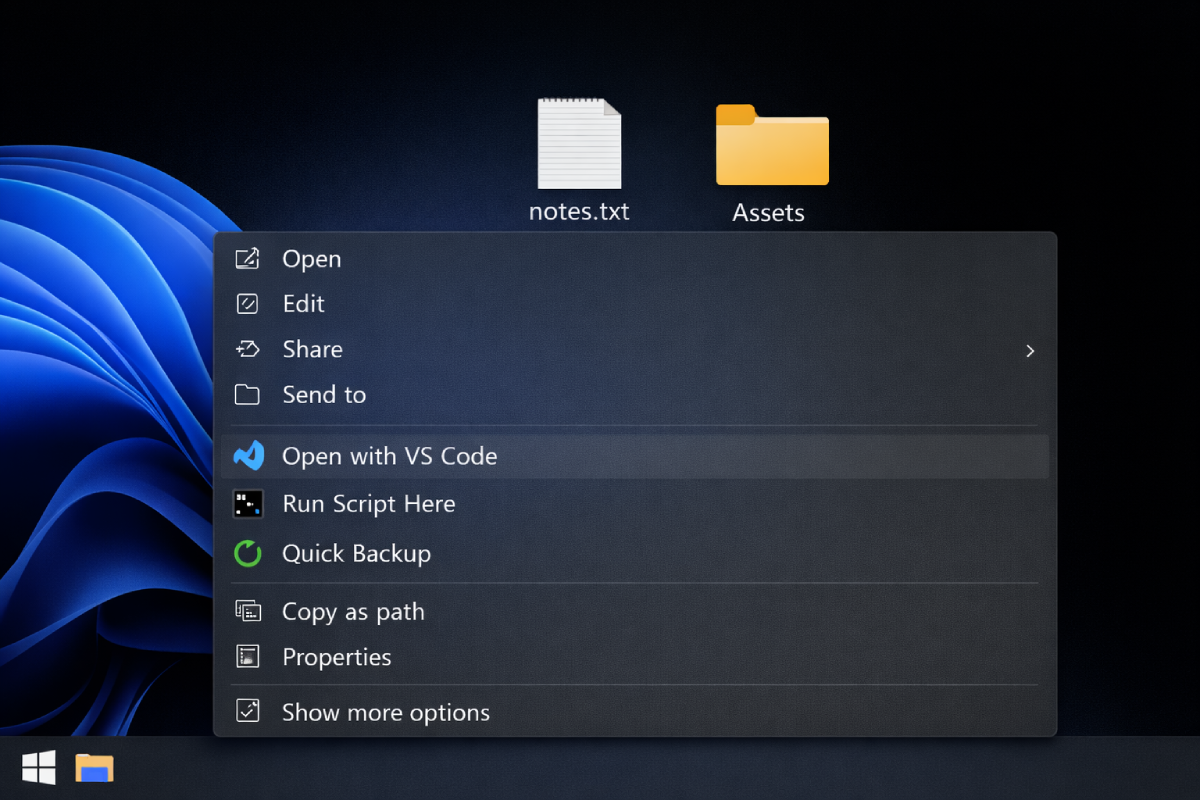
How to Create a Custom Right-Click Menu in Windows 10/11
For a complete Windows tips and productivity guide, read: [/windows-tips/](/windows-tips/) Windows right click menu is cluttered here’s how to clean it and add your own options.
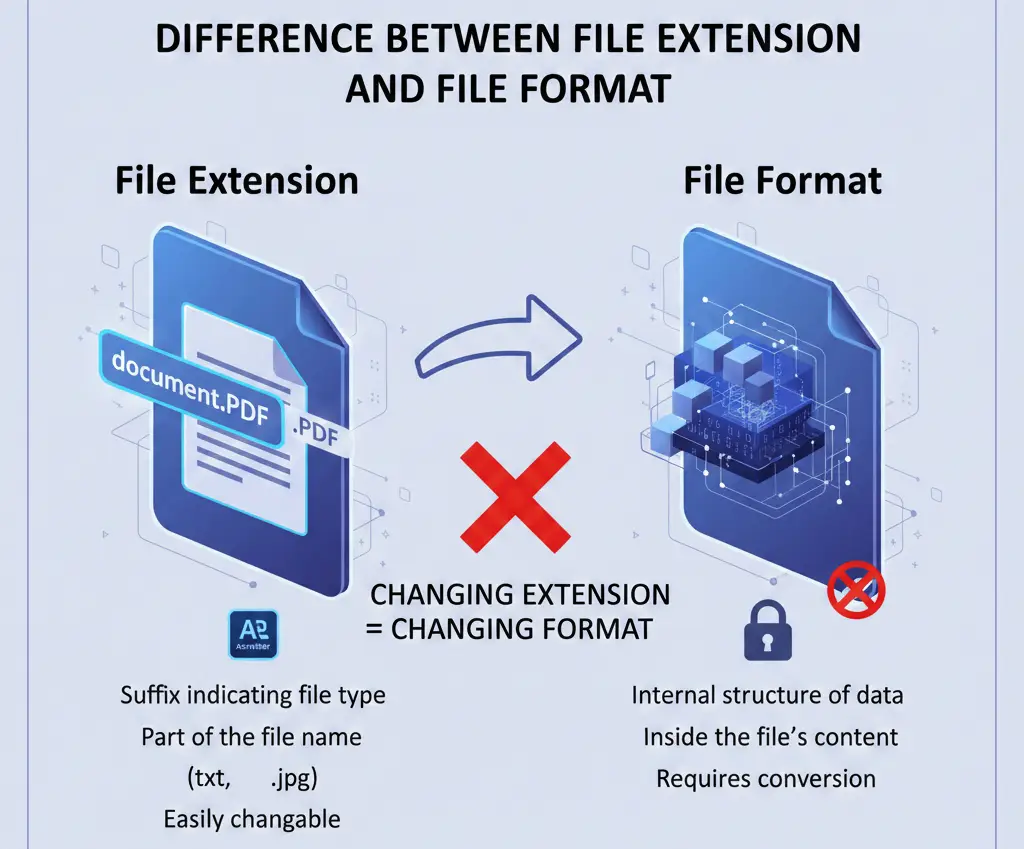
Difference Between File Extension and File Format
Understand the crucial difference between a file extension and its underlying file format. Learn why changing an extension doesn't change the format.
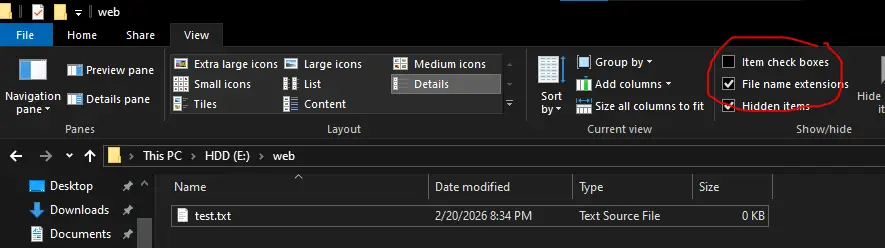
How to Change File Extension in Windows 10 (Step-by-Step Guide)
Learn how to change file extension in Windows 10 step-by-step. Enable file name extensions, rename files safely, and avoid common mistakes.