
For a complete Windows tips and productivity guide, read: /windows-tips/
Changing a file extension in Windows 10 is simple once you enable file name extensions. In this step-by-step guide, you will learn how to show file extensions and safely rename them.
Why Change File Extensions?
You may need to change a file extension when:
- Converting
.txtto.htmlfor web development - Creating script files like
.bat - Fixing incorrect file types
- Testing how different file formats behave
By default, Windows 10 hides file extensions, which makes file management harder.
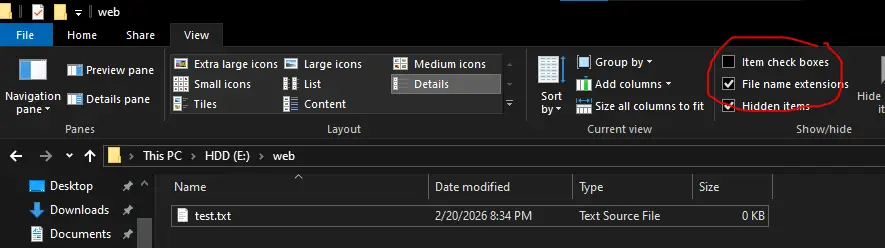
Step 1: Enable File Name Extensions in Windows 10
Before changing a file extension, you must make them visible.
- Open File Explorer (Press
Windows + E) - Click the View tab at the top
- Check the box File name extensions
After enabling this option, you will see extensions like .txt, .html, .jpg, etc.
Step 2: Rename the File Extension
Now that extensions are visible:
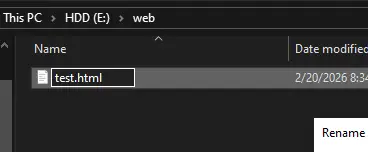
- Right-click the file
- Click Rename
- Change the extension
Example:test.txt → test.html
- Press Enter
Step 3: Confirm the Warning Message
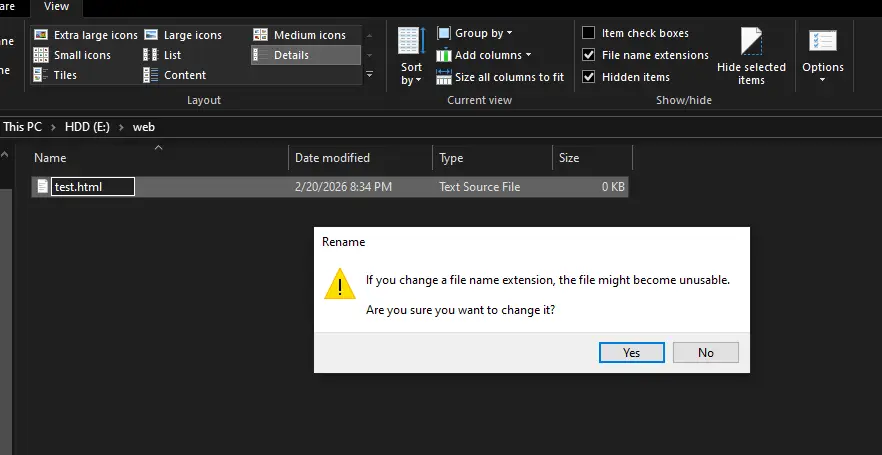
When you change the extension, Windows will show a warning message:
If you change a file name extension, the file might become unusable.
Click Yes if you are sure.
Important: Changing Extension vs Converting File
Changing the file extension does not convert the file format.
For example :
- Renaming
.mp4to.mp3does not convert video into audio. - Renaming
.txtto.pdfdoes not create a real PDF file.
If you need to convert files, use proper file conversion software.
Now you know how to change file extension in Windows 10 step-by-step. By enabling file name extensions and renaming files correctly, you can manage your files more efficiently.
This small setting makes a big difference, especially for beginners, students, and developers.
Frequently Asked Questions
Is it safe to change file extensions in Windows 10?
Yes, but only if you know what the file type is. Changing extensions incorrectly can make files unusable.
Why can’t I see file extensions in Windows?
By default, Windows hides file extensions. Enable “File name extensions” in the View tab of File Explorer.