Ultimate Windows Troubleshooting Guide for Windows 10 & 11 (2026)
Complete guide to Windows 10 & 11 troubleshooting, covering performance issues, system maintenance, and common fixes.
Windows problems are inevitable. The key is knowing how to fix them efficiently without wasting time on solutions that don’t work.
This guide covers the most common Windows issues and their real fixes - no registry cleaners, no magic optimization tools, just practical solutions that actually work.
Windows Performance Comparison
Windows 10 vs Windows 11 Performance
Many people wonder if upgrading to Windows 11 is worth it from a performance perspective.
Windows 10: Mature, stable, lighter on resources Windows 11: Modern UI, better security, slightly heavier
The performance difference is minimal for most users. Your hardware matters more than the OS version.
Detailed comparison: Windows 10 vs Windows 11 Performance
System Maintenance and Recovery
Shutdown vs Restart: What’s the Difference?
This seems basic, but understanding the difference is crucial for troubleshooting.
Shutdown: Saves some system state, faster startup Restart: Full system reload, clears more issues
For troubleshooting, restart is almost always better.
Learn why: Shutdown vs Restart Windows
Windows Search Performance
Why Windows Search is Slow
Windows Search can become painfully slow over time, making finding files take forever.
Common causes:
- Indexing database corruption
- Too many indexed locations
- Background indexing conflicts
- SSD vs HDD performance
Step-by-step fixes: Why Windows Search is Slow
Security and Performance Balance
Windows Defender Performance Impact
Windows Defender protects your system but can impact performance, especially during scans.
Real-time protection: Minimal impact on modern systems Scheduled scans: Can cause temporary slowdowns Full scans: Resource-intensive but necessary
Understanding this helps balance security and performance: Windows Defender Performance Impact
Application Performance
Windows 11 Slow Apps Fix
Apps opening slowly in Windows 11 is a common complaint, especially on older hardware.
Common causes:
- Background processes
- Storage performance issues
- Memory limitations
- App compatibility problems
Solutions: Windows 11 Slow Apps Fix
General Troubleshooting Methodology
Systematic Approach to Windows Problems
- Identify the symptom: What exactly is happening?
- Check recent changes: Updates, new software, hardware changes
- Use built-in tools: Event Viewer, Task Manager, System File Checker
- Isolate the cause: Safe mode, clean boot, hardware tests
- Apply targeted fixes: Don’t use shotgun approaches
Essential Troubleshooting Tools
- Task Manager: Monitor resource usage
- Event Viewer: Check system errors
- System File Checker:
sfc /scannow - DISM: Repair system image
- Performance Monitor: Advanced diagnostics
Common Windows Issues and Fixes
System Slowdowns
Symptoms: Everything feels sluggish, delays in response Causes: Background processes, storage issues, memory pressure Fixes: Clean startup, check disk health, optimize memory
Startup Problems
Symptoms: Slow boot, apps taking forever to load Causes: Too many startup programs, SSD issues, driver problems Fixes: Manage startup apps, check storage health, update drivers
Application Crashes
Symptoms: Apps closing unexpectedly, freezing Causes: Corrupted files, compatibility issues, memory problems Fixes: Reinstall apps, run compatibility troubleshooter, check memory
When to Reset vs Reinstall
Windows Reset
When to use: Performance issues, corrupted settings, malware cleanup What it does: Reinstalls Windows, keeps files optionally Recovery: Can be undone for 10 days
Clean Reinstall
When to use: Major hardware changes, persistent issues, fresh start What it does: Complete wipe and reinstall Recovery: Requires backup restoration
Preventive Maintenance
Regular Windows Maintenance
- Keep Windows updated: Security patches and performance improvements
- Clean temporary files: Monthly cleanup of junk files
- Monitor disk health: Check SSD/HDD health regularly
- Review startup programs: Remove unnecessary auto-start apps
- Backup regularly: System restore points and file backups
Bottom Line
Windows troubleshooting isn’t about knowing every command - it’s about:
- Systematic approach: Methodical problem-solving
- Right tools: Using built-in Windows utilities effectively
- Understanding causes: Knowing why issues happen
- Targeted fixes: Applying specific solutions to specific problems
Most Windows issues can be resolved without third-party tools or registry cleaners. Windows has everything you need built-in.
For more Windows optimization guides, check out our Windows Performance pillar page.
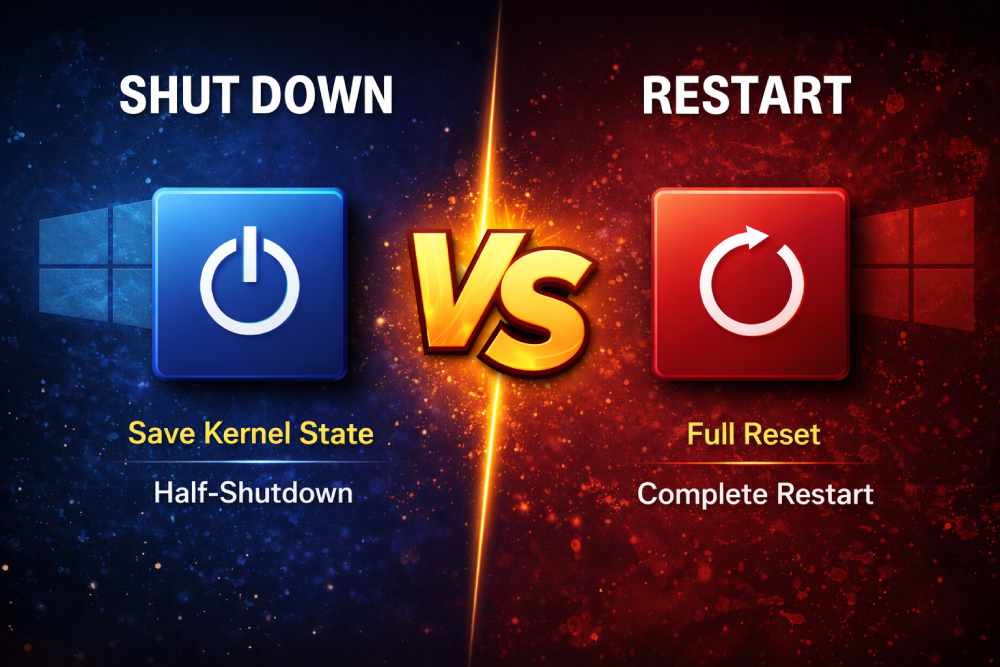
Shutdown vs Restart in Windows: What Actually Happens Behind the Scenes
Shutdown doesn’t fully reset your PC anymore, restart does.
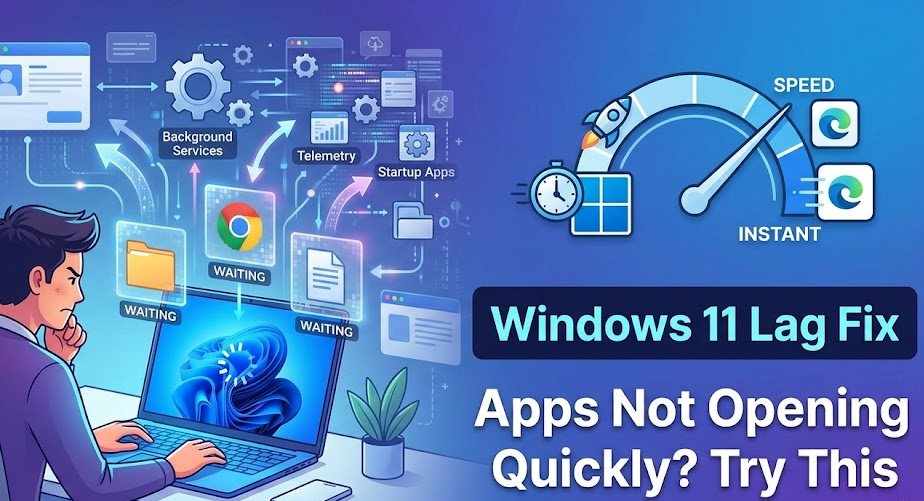
Windows 11 Lag Fix: Apps Not Opening Quickly? Try This
Apps opening slow on Windows 11 is usually bad system behavior, not weak hardware.
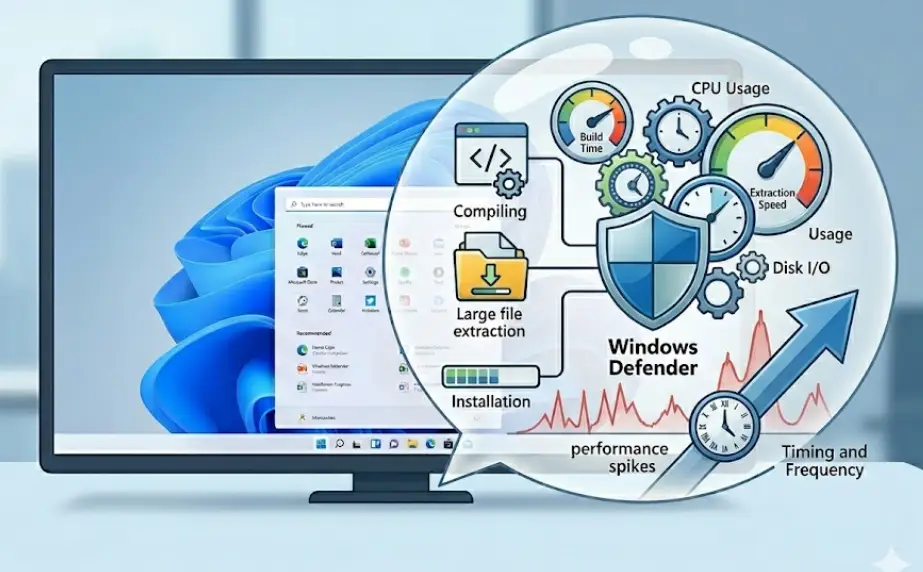
The Truth About Windows Defender Performance Impact (It’s Not What You Think)
Windows Defender isn’t free performance-wise but it’s also not the villain people make it.
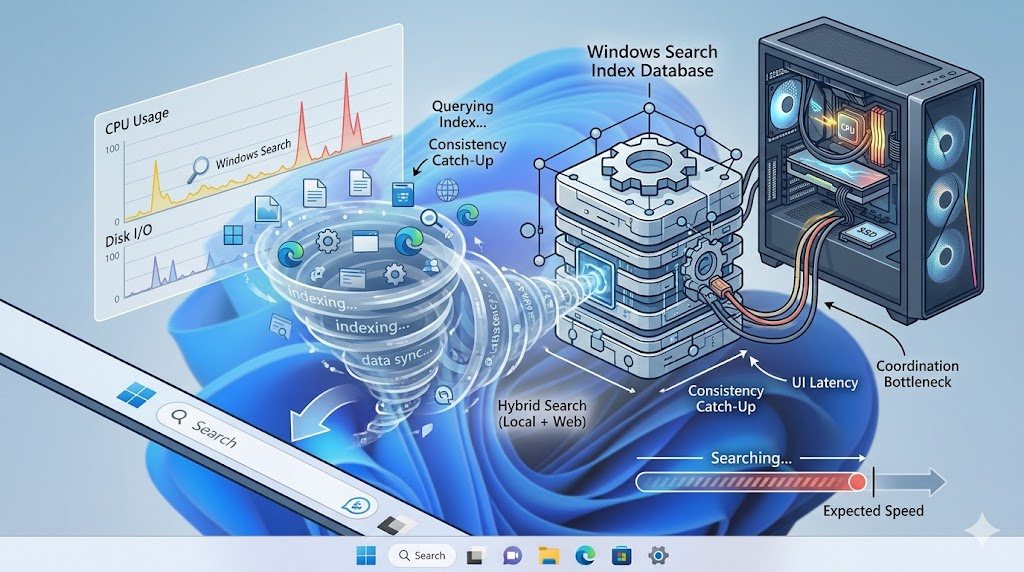
Why Windows Search Is Still Weirdly Slow (Even on Fast PCs)
Windows Search isn’t slow because of your PC it’s the way it’s built.
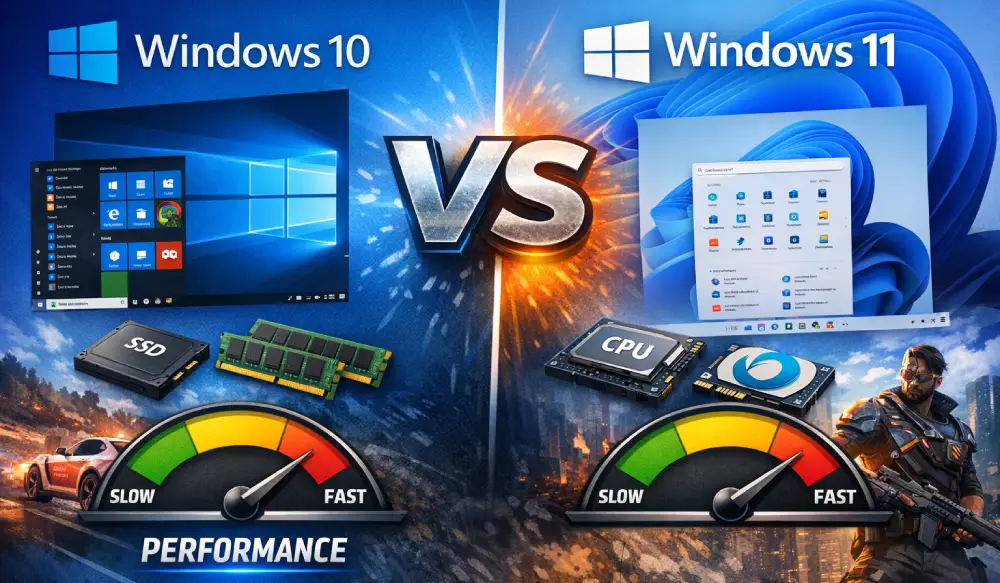
Windows 10 vs Windows 11 Performance – Which is Faster?
Real-world comparison of Windows 10 vs Windows 11 performance. Find out which is actually faster and what matters for your hardware.